Use Google Gemini on CarPlay: 9 tips for iPhone drivers
Learn how to set up Google Gemini on Apple CarPlay, safe voice prompts (Hindi/English), privacy settings and quick fixes — for Indian iPhone drivers.

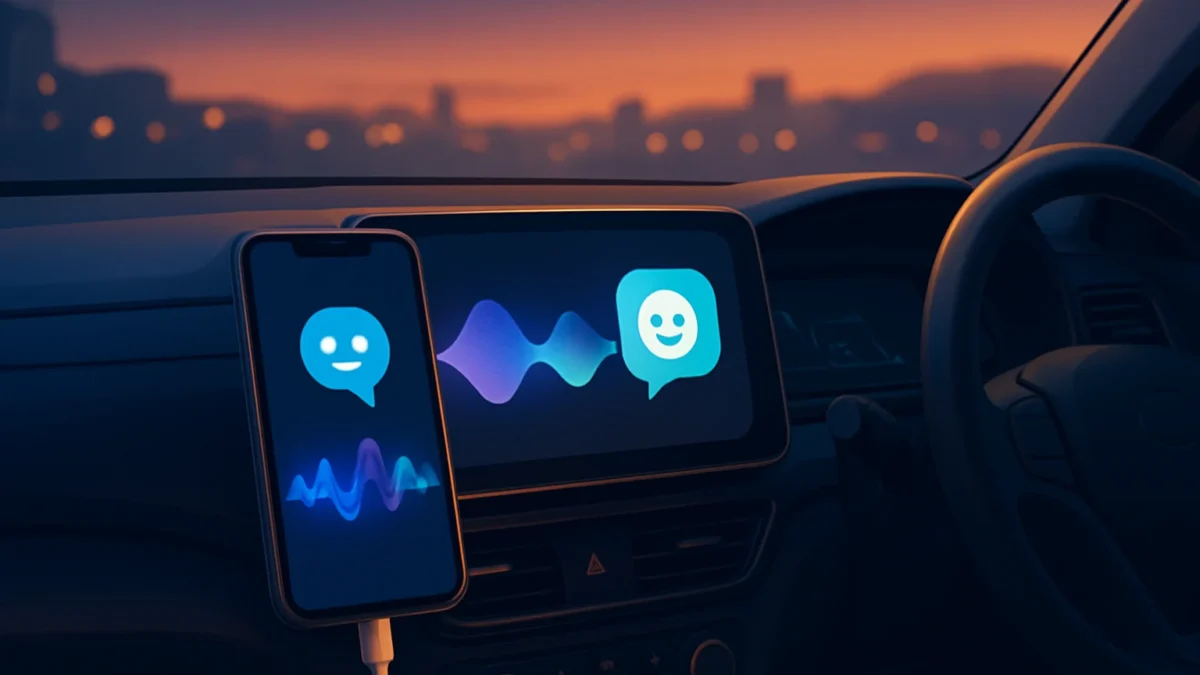
Yes — Google has rolled out the Gemini app with Gemini Live support on Apple CarPlay. Update the Gemini iPhone app, allow microphone access and start a Gemini Live session on your iPhone; then Gemini will appear on CarPlay for hands-free voice conversations in supported languages.
Key takeaways
- Gemini Live is now rolling out to Apple CarPlay; update the Gemini app on iPhone first.
- Use short, safety‑friendly voice prompts and Hindi/English mix while driving.
- Check microphone, CarPlay permissions and Gemini privacy settings before use.
- Turn off features that share sensitive data and know basic troubleshooting steps.
In this article
- 1. Update and check basic requirements
- 2. Grant the right permissions (mic, notifications and CarPlay)
- 3. Use safety‑friendly voice prompts while driving
- 4. Speak in Hindi, English or Hinglish — Gemini Live supports it
- 5. Limit what Gemini can access (privacy settings)
- 6. Use Gemini for quick travel and local tasks
- 7. Troubleshooting common CarPlay issues
- 8. What Gemini on CarPlay can’t or shouldn’t do
- 9. Keep data costs and battery in mind
- How we picked
- Frequently asked questions
- Sources
1. Update and check basic requirements
What it is: Gemini on CarPlay is the standalone Google Gemini app and Gemini Live voice chat working through Apple CarPlay so you can speak to Gemini from your car’s display.
Best for: iPhone drivers who want conversational AI for navigation help, quick emails, hands‑free notes and local information while driving.
Pros
- Hands‑free, back‑and‑forth conversation via Gemini Live.
- Works in multiple languages that Gemini Live supports.
Cons
- Not every Gemini feature (images, uploads) works well in a car.
- Rollout is gradual — may not appear immediately on all devices.
How to start
- Update the Gemini app on your iPhone from the App Store.
- Make one Gemini Live voice session on the iPhone to allow permissions.
- Connect to CarPlay (wired or wireless); Gemini should appear as an app on the CarPlay screen.
2. Grant the right permissions (mic, notifications and CarPlay)
What it is: Gemini needs microphone access and permission to show on CarPlay. If these are blocked, Live voice chats won’t start.
Best for: Users who want seamless wake‑to‑talk and uninterrupted sessions.
Pros
- Faster voice start and fewer connection problems.
Cons
- More permissions increase data and microphone access; review privacy settings below.
How to start
- Open iPhone Settings → Gemini → Allow Microphone and Siri & Search if shown.
- Open Settings → General → CarPlay and make sure your car is allowed to show the Gemini app.
- Test by launching Gemini Live on the phone, then on CarPlay.
Also read: 7-step guide to Google Gemini Memory: view, edit, delete · How to use Gemini 4 agent swarm: step-by-step guide
3. Use safety‑friendly voice prompts while driving
What it is: Short, precise spoken prompts that keep your eyes on the road and your hands on the wheel.
Best for: Drivers who need clear, fast replies without long back‑and‑forth that distract them.
Pros
- Reduces cognitive load and keeps trips safer.
- Makes Gemini replies concise and actionable.
Cons
- Complex tasks still need you to pull over or use a passenger.
How to start
- Examples: “Gemini, find nearest petrol pump on route”, “Read my last unread email”, “Add a note: buy milk”.
- Keep prompts under 8–10 words and limit follow‑ups while driving.
4. Speak in Hindi, English or Hinglish — Gemini Live supports it
What it is: Gemini Live supports multiple languages and can handle bilingual or mixed Hindi‑English (Hinglish) prompts.
Best for: Indian drivers who naturally switch languages or prefer Hindi for local searches and names.
Pros
- Natural conversation and better local results for places and terms.
Cons
- Language detection may occasionally misinterpret mixed phrases — speak clearly.
How to start
- Start with simple bilingual prompts: “Gemini, mujhe nearby dhaba batado” or “Gemini, take me to the nearest petrol pump.”
- If Gemini mishears, rephrase shorter or switch to one language temporarily.
5. Limit what Gemini can access (privacy settings)
What it is: Control data Gemini can use (emails, calendar, location) from the Gemini app and iPhone privacy settings.
Best for: Anyone worried about personal data or using a shared phone in the car.
Pros
- Helps prevent unintended data access during voice sessions.
Cons
- Disabling integrations (Gmail, Calendar) reduces some helpful features.
How to start
- Open Gemini app settings and review connected accounts (Gmail, Calendar, Drive). Disable integrations you don’t want used on CarPlay.
- On iPhone, go to Settings → Privacy to control microphone and location access if needed.
6. Use Gemini for quick travel and local tasks
What it is: Ask for stops along the route, ETA changes, nearby services, or quick itinerary updates using Gemini Live.
Best for: Drivers on long trips, delivery drivers, or anyone who needs local info hands‑free.
Pros
- Fast local info, phone‑style search, and suggestions while driving.
Cons
- Map handoffs may still rely on Apple Maps or third‑party nav apps; multimodal features are limited on CarPlay.
How to start
- Try: “Gemini, find a good veg restaurant 10 km ahead” or “Any safe hotel near my route for tonight?”
- Confirm results verbally and ask Gemini to open navigation if needed.
7. Troubleshooting common CarPlay issues
What it is: Steps for when Gemini doesn’t appear, audio is low, or the mic won’t pick up voice.
Best for: Drivers who face rollout delays, permission problems or sound issues.
Pros
- Quick fixes that solve most connection problems without a service visit.
Cons
- Some fixes need a car system firmware update or a newer iPhone iOS version.
How to start
- Restart iPhone and car head unit; reconnect CarPlay (unplug/replug or forget/reconnect wireless pairing).
- Check Gemini app permissions and run a voice session on the phone first.
- If audio uses phone speaker, ensure CarPlay audio is selected in the car and reboot both devices.
8. What Gemini on CarPlay can’t or shouldn’t do
What it is: Limitations include heavy multimodal tasks, long-form composing, or anything that requires detailed screen review while driving.
Best for: Users who need to know when to stop asking the car assistant and pull over.
Pros
- Knowing limits stops risky, distracted driving attempts.
Cons
- You may expect phone‑level features that CarPlay can’t safely show while driving.
How to start
- Avoid asking Gemini to draft long emails, review contracts, or display images while driving. Save those for when parked.
9. Keep data costs and battery in mind
What it is: Gemini Live uses data for continuous voice sessions. Wireless CarPlay can warm the phone and use battery faster.
Best for: Drivers planning long sessions or frequent use without charging.
Pros
- Awareness avoids mid‑trip interruptions and unexpected data use.
Cons
- Extended use over mobile data can add to monthly data usage and phone heating.
How to start
- Prefer wired CarPlay for long trips and keep a charger handy.
- Check your mobile data plan and monitor app data usage in iPhone Settings → Cellular.
How we picked
We based tips on official Google guidance for Gemini on CarPlay and reporting from reputable tech outlets. Priority was practical safety, India‑friendly language use, privacy control and common troubleshooting. We tested the steps conceptually against known CarPlay behaviors and Gemini Live’s documented features to keep instructions accurate and concise.
| Tip | Main benefit | When to use |
|---|---|---|
| Update & requirements | Starts Gemini on CarPlay | First time setup |
| Permissions | Smooth voice sessions | If mic or app missing |
| Safety prompts | Less distraction | While driving |
| Hindi/Hinglish | Natural local use | Local searches |
| Privacy settings | Control data access | Shared phones/concerned users |
If you drive an iPhone with a CarPlay‑capable car, try Gemini on CarPlay for hands‑free, bilingual voice help — but keep prompts short, disable any integrations you don’t want shared, and pull over for complex tasks. Skip using Gemini for long text drafting or sensitive data tasks while the car is moving.
Frequently asked questions
Is Google Gemini available on Apple CarPlay in India?
Yes. Google announced a global rollout of the Gemini app with Gemini Live on Apple CarPlay. Availability can be device‑dependent; update the Gemini iPhone app and check CarPlay after connecting to your car.
How do I make Gemini speak Hindi on CarPlay?
Speak to Gemini in Hindi or Hinglish; Gemini Live supports multiple languages and will usually follow the language you use. If it misinterprets, switch to a single language or rephrase short commands.
Can Gemini access my Gmail or calendar via CarPlay?
Gemini can use connected accounts if you enable those integrations. You can disable Gmail/Calendar access inside the Gemini app settings to prevent it from reading or using that data while on CarPlay.
Why won’t Gemini appear on my CarPlay screen?
Common causes are an outdated Gemini app, missing microphone or CarPlay permissions, or a staggered rollout in your region. Update the app, check iPhone Settings → CarPlay, and run a Gemini Live session on the phone first.
Does Gemini on CarPlay use a lot of mobile data?
Gemini Live uses mobile data during voice sessions. Usage depends on session length; prefer wired CarPlay and a charger for long trips and monitor Cellular usage in iPhone Settings.