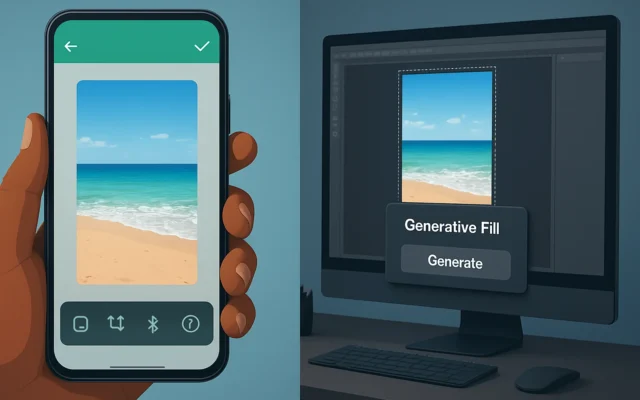
How to use WhatsApp Meta AI photo expansion on iPhone
Step-by-step iPhone guide to WhatsApp's Meta AI photo expansion. Learn how to expand photos to 9:16, privacy checks, tips for natural results and troubleshooting.

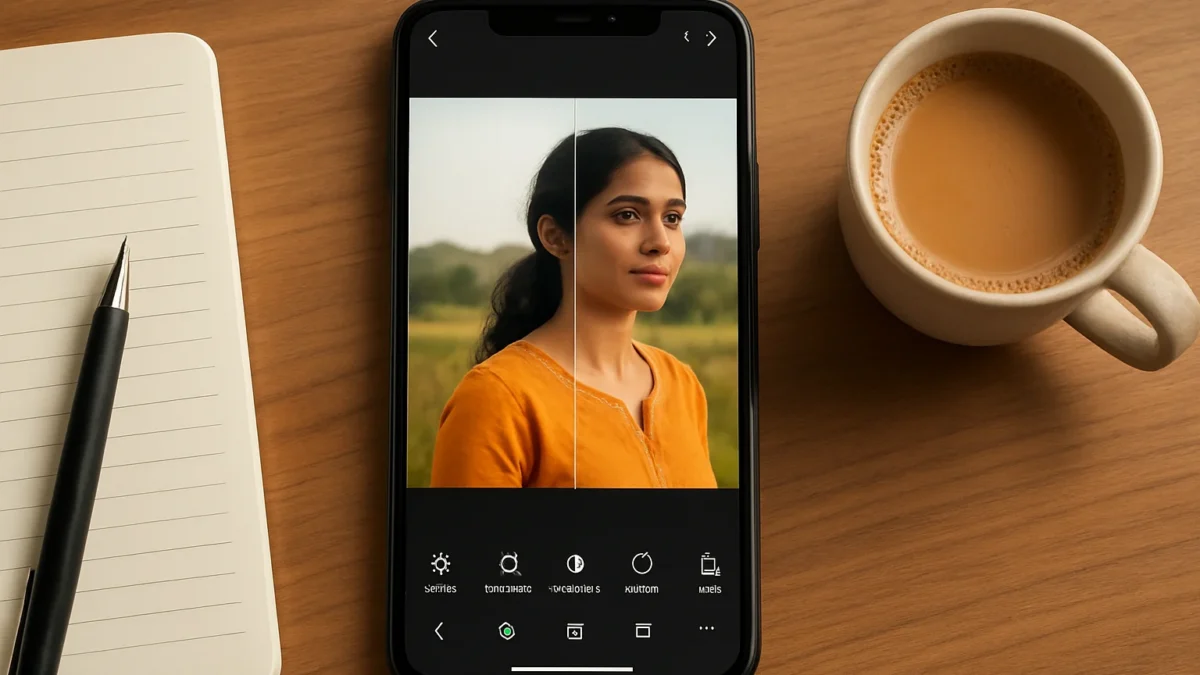
Open a photo in a WhatsApp chat, tap the edit (pencil) icon, choose the Meta AI / Expand (or ‘Extend to 9:16’) option, then review and send. The tool uses Meta AI to generate the extra top/bottom pixels so your picture fits 9:16; check Meta AI permissions and preview before sending.
Key takeaways
- WhatsApp’s Meta AI can expand photos to full-screen 9:16 inside the editor.
- You’ll find the option in the photo editor (pencil/draw area) if your app build and account have the feature.
- Always preview AI-generated content and check Meta AI data settings before sending.
- If you don’t see it, update WhatsApp, join beta (TestFlight) or wait — rollout is gradual.
- For natural vertical fills, start with a clear background and centre your subject.
In this article
Who this is for and what you need
This guide is for iPhone users who want to expand horizontal or square photos into a vertical 9:16 frame inside WhatsApp using Meta AI. You need an iPhone with the latest WhatsApp build that has the Meta AI photo-expansion feature enabled on your account, an active internet connection, and enough free storage to save the edited image. Availability is rolling out gradually — some testers get it earlier via TestFlight. ([gadgets360.com](https://www.gadgets360.com/apps/news/whatsapp-for-ios-meta-ai-image-expansion-feature-iphone-wabetainfo-report-12287490?utm_source=openai))
Step-by-step
- Update WhatsApp or join beta (if needed). Open the App Store and update WhatsApp; if you use TestFlight for beta access, ensure you have the beta build (reports show iOS beta 26.44.10.16 had the feature). If you still don’t see it, the feature may be enabled server-side and will arrive later. ([gadgets360.com](https://www.gadgets360.com/apps/news/whatsapp-for-ios-meta-ai-image-expansion-feature-iphone-wabetainfo-report-12287490?utm_source=openai))
- Open a chat and select a photo. Tap a conversation, then tap the photo you want to expand. You can use a newly taken photo or one from your camera roll. The editor opens automatically when you choose to send a photo. ([gadgets.beebom.com](https://gadgets.beebom.com/news/whatsapp-ai-image-expansion-feature-is-now-rolling-out-to-ios?utm_source=openai))
- Enter the photo editor (tap the pencil or edit icon). In the image preview look for the pencil/edit icon (or the drawing/sketch button). WhatsApp shows AI editing options inside this editor. ([wabetainfo.com](https://wabetainfo.com/whatsapp-is-rolling-out-a-feature-to-expand-images-on-ios/?utm_source=openai))
- Choose Meta AI / Expand (Extend to 9:16). If your account has the feature, you’ll see an option labelled like Expand, Extend or ‘Extend to 9:16’ driven by Meta AI. Tap it to start generation. The app analyses the photo and creates new top and/or bottom content to fit 9:16. ([gadgets.beebom.com](https://gadgets.beebom.com/news/whatsapp-ai-image-expansion-feature-is-now-rolling-out-to-ios?utm_source=openai))
- Wait for the AI preview and review carefully. The editor shows the generated 9:16 result. Review the added content — the AI fills background and edges, so check for artefacts or unexpected elements. You can retry generation if available. WhatsApp will not auto-send the AI result. ([wabetainfo.com](https://wabetainfo.com/whatsapp-is-rolling-out-a-feature-to-expand-images-on-ios/?utm_source=openai))
- Adjust crop, stickers or text if needed. Use WhatsApp’s crop, stickers and text tools to fine-tune the expanded image while still in the editor. Make final edits before tapping send or saving. ([digitaltrends.com](https://www.digitaltrends.com/phones/whatsapp-tests-meta-ai-photo-expand-feature-on-ios/?utm_source=openai))
- Send or save the expanded photo. When you’re satisfied, tap send to share in chat or save to your camera roll. Remember the extra pixels were AI-generated — treat them like edited content and confirm there’s no sensitive or misleading material. ([gemtakes.com](https://gemtakes.com/whatsapp-ai-photo-expansion-9-16-status-guide/?utm_source=openai))
Also read: WhatsApp AI Photo Expansion vs Adobe Generative Fill — which is better for you? · Control what Meta Muse AI learns about you — meta muse ai guide
Where to take screenshots (suggested)
Capture these screenshots for your notes: App Store / TestFlight version page, WhatsApp Settings → Help → App info (to show build), the photo editor with the pencil icon, the Meta AI Expand option, and the preview screen showing the 9:16 result.
Common problems and fixes
- I don’t see the Expand option. Make sure WhatsApp is updated, confirm your build in Settings → Help → App info, and if you use TestFlight you need the specific beta build. The rollout is server-side, so the feature may arrive later on your account. ([gadgets360.com](https://www.gadgets360.com/apps/news/whatsapp-for-ios-meta-ai-image-expansion-feature-iphone-wabetainfo-report-12287490?utm_source=openai))
- Generation fails or times out. Check your internet (Wi‑Fi or mobile data) and retry. AI generation may fail when servers are busy — wait a few minutes. Also clear some storage if your iPhone is low on space. ([wabetainfo.com](https://wabetainfo.com/whatsapp-is-rolling-out-a-feature-to-expand-images-on-ios/?utm_source=openai))
- The expanded area looks unnatural. Try a different photo with a simple background or re-run the expansion to get a different result. Move your subject away from the edges when shooting to help the AI create smoother fills. ([gemtakes.com](https://gemtakes.com/whatsapp-ai-photo-expansion-9-16-status-guide/?utm_source=openai))
- Worried about privacy or where the image is processed. WhatsApp has not publicly confirmed whether this specific editor processes images on-device or on Meta servers for the expansion tool; if you need certainty, avoid using it for sensitive photos until Meta provides an explicit data-processing statement. Check Meta AI and WhatsApp settings for AI permissions. ([secnews.gr](https://www.secnews.gr/en/748880/whatsapp-meta-ai-photography-effect/?utm_source=openai))
Tips for getting natural 9:16 expansions
- Shoot with cleaner backgrounds. Plain skies, walls or uniform textures help the AI extend edges convincingly.
- Keep the subject centered. Subjects too close to top or bottom edges give the AI less context and can create odd crops.
- Use similar colours at edges. If the edge has complicated details (crowds, buildings), try cropping a simpler area first or repositioning before shooting.
- Try several generations. The editor may let you rerun the AI; pick the version that looks most natural and unobtrusive.
- Compare with native iOS Extend (if available). iOS Photos in recent iOS releases added an Extend feature; results may differ from WhatsApp’s Meta AI — pick the one that looks better for your use. ([digitaltrends.com](https://www.digitaltrends.com/phones/whatsapp-tests-meta-ai-photo-expand-feature-on-ios/?utm_source=openai))
Android vs iPhone differences
The feature first appeared in Android beta builds and is now rolling out to iPhone testers via TestFlight and some stable users; UI labels and where the option lives may vary slightly between platforms. On iPhone the option appears inside the WhatsApp photo editor (pencil/draw area); on Android it showed as an AI expansion tool in the editor in earlier beta reports. Availability is staggered by build and server-side flags. ([wabetainfo.com](https://wabetainfo.com/whatsapp-is-exploring-a-new-ai-powered-tool-to-expand-photos/?utm_source=openai))
Privacy settings to check before using
- Meta AI / WhatsApp AI settings. Open WhatsApp Settings and look for any Meta AI or AI chat settings — toggle permissions you’re comfortable with. If unsure whether images leave your phone, don’t use the tool on private material until Meta clarifies processing. ([igeeksblog.com](https://www.igeeksblog.com/whatsapp-ai-photo-expansion-iphone-beta/?utm_source=openai))
- Camera and Photos access. Ensure WhatsApp has Photos permission set to the level you prefer (Read & Write or Selected Photos) in iPhone Settings → Privacy → Photos.
- Account and backup settings. Remember that shared AI-generated images are treated like normal photos and may be included in backups if WhatsApp backup is enabled.
Short checklist before you send
- Preview AI-expanded result for artifacts.
- Confirm no sensitive content was added around the edges.
- Check WhatsApp app build and Meta AI permission settings.
- Have a local copy saved if you want the image outside WhatsApp.
If you share photos to Status or portrait-oriented chats often, try WhatsApp’s Meta AI photo expansion for quick 9:16 fills — but review results and privacy settings before sending. Skip it for sensitive images until Meta confirms where processing happens.
Frequently asked questions
Is WhatsApp’s photo expansion available on stable iOS yet?
As of early November 2026 the feature was rolling out to iPhone beta testers and some stable users; rollout is gradual and may still require a TestFlight beta if your account hasn’t been enabled yet. Check your WhatsApp build in Settings → Help → App info. ([gadgets360.com](https://www.gadgets360.com/apps/news/whatsapp-for-ios-meta-ai-image-expansion-feature-iphone-wabetainfo-report-12287490?utm_source=openai))
Does the expanded part say it was AI-generated?
WhatsApp’s editor shows a preview but, at the time of reporting, WhatsApp hadn’t confirmed whether the image will carry an AI label or metadata after sending. Always preview and disclose if you are sending AI-altered content to others. ([secnews.gr](https://www.secnews.gr/en/748880/whatsapp-meta-ai-photography-effect/?utm_source=openai))
Can I turn off Meta AI on WhatsApp?
WhatsApp lets users manage AI-related settings where available, but complete disabling may differ by region and build. Look for Meta AI or AI assistant options under WhatsApp Settings and follow the toggles provided. If you can’t find them, the app may not yet offer a full off switch in your build. ([igeeksblog.com](https://www.igeeksblog.com/whatsapp-ai-photo-expansion-iphone-beta/?utm_source=openai))
Will the image be processed on my iPhone or sent to Meta servers?
Reports so far do not confirm whether the expansion is performed on-device or on Meta servers. If this is important to you, avoid using the feature for private photos until Meta publishes a clear data-processing statement. ([secnews.gr](https://www.secnews.gr/en/748880/whatsapp-meta-ai-photography-effect/?utm_source=openai))
How do I get more natural results with the expansion?
Use photos with simple, uniform backgrounds and keep your subject away from the photo edges. If the first result looks odd, re-run the expansion or try another crop — different generations can produce cleaner fills. ([gemtakes.com](https://gemtakes.com/whatsapp-ai-photo-expansion-9-16-status-guide/?utm_source=openai))
Sources
- WhatsApp Reportedly Testing Meta AI-Powered Image Expansion Feature for iPhone | Technology News
- WhatsApp's AI Image Expansion Feature Is Now Rolling out to iOS | Beebom Gadgets
- WhatsApp is rolling out a feature to expand images on iOS | WABetaInfo
- WhatsApp could soon let you expand photos with Meta AI on your iPhone – Digital Trends
- WhatsApp AI Photo Expansion Android Beta 2.26.44.8 — Expand Photos to 9:16 for Status
- WhatsApp: Meta AI "enlarges" your photos in 9:16
- WhatsApp is exploring a new AI-powered tool to expand photos | WABetaInfo