Control what Meta Muse AI learns about you — meta muse ai guide
Step-by-step guide to opt out, limit training, revoke permissions and delete your data from Meta Muse AI. Practical India-focused steps and tips.

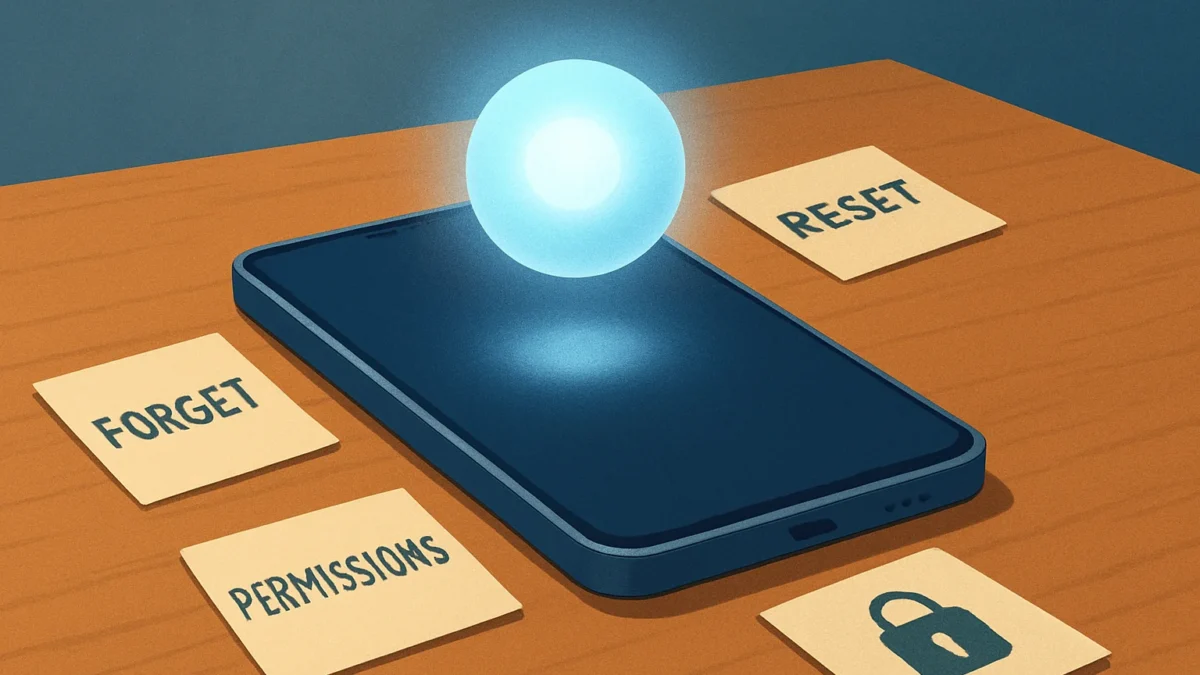
Open Muse → Settings → Data controls and turn off “Help improve our AI models” to stop training. Use Settings → Permissions and Connectors to revoke app access, ask Muse to “forget” topics or open Identity → Memory to edit, and use Reset Muse to permanently delete Muse data. On Android and iPhone the paths are the same, but connectors and system permissions differ.
Key takeaways
- Turn off model-training in Settings → Data controls first — training is on by default.
- Revoke Connectors and app permissions so Muse can’t read Gmail, Photos or other apps.
- Use Forget (ask Muse) or edit Memory.md to remove specific remembered facts.
- Reset Muse permanently deletes chat history, files and active tasks — download data first.
- Deleting the app doesn’t erase Muse data — use in-app controls or Meta account tools.
In this article
Who this guide is for and what you need
This step-by-step guide is for Indian smartphone users who use Meta’s Muse AI (on Android, iPhone or the web) and want to stop Muse from training on their data, remove saved memories, revoke permissions or fully delete agent data. You need: the Muse app or access to Muse on the web, your Meta account signed in, and a few minutes to check Settings, Connectors and Memory. If you plan to wipe everything, download your Muse data first.
Step-by-step
- Open Muse and go to Settings. Tap the account or Assistant icon, then choose Settings. That’s where all Muse privacy and data controls live.
- Turn off model training. Open Settings → Data controls and toggle off “Help improve our AI models.” This stops your Muse interactions from being used to train Meta’s AI going forward (it’s on by default).
- Download your Muse data (optional but recommended). In Settings → Data controls look for “Download your Muse data” or similar. Save a copy before you permanently delete anything: useful for receipts, tasks or files you might need later.
- Use Forget for specific topics. In chat, tell Muse to “forget [person/topic]” (for example, “Forget my bank details”). Muse will remove matches from its stored memories to the best of its ability.
- Edit Memory directly. Open Assistant icon → Identity → Memory (sometimes shown as Memory.md) and remove lines or files that Muse stores about you. This is useful for targeted cleanup of contacts, preferences or notes.
- Revoke connectors and app access. Go to Settings → Connectors (or Permissions → Connectors) and disconnect Gmail, Google Drive, Apple Mail, Photos, WhatsApp or other linked services you don’t want Muse to access. Also check Settings → Permissions to revoke web access or browser-level allowances.
- Change action permissions to “Ask” only. Settings → Permissions includes options for purchases, sending emails or taking actions on your behalf. Set these to “Ask” or “Always ask” rather than “Always allow.”
- Delete individual messages or side chats. In the Chats tab long-press a message (Android) or swipe/hold (iPhone) and choose Delete. This removes the source item but may not erase learned information — follow up with Forget or Memory edits.
- Reset Muse to wipe everything. If you want a complete wipe: Settings → Data controls → Reset Muse. Meta says Reset deletes chat history, files and active tasks permanently. Do not reset until you’ve downloaded data you need.
- Recheck account-level AI settings on Meta apps. If your Meta account links Facebook, Instagram or Threads, check those apps’ privacy controls for AI training and public content use (for example, Instagram public-profile image settings affect Muse Image features).
- If you’re outside the app: use Meta Help forms for formal objections. For formal removal or to object to training beyond in-product toggles, use Meta’s Help Center forms (follow Meta’s verification steps). Expect identity checks for these requests.
Android vs iPhone differences
The in-app Settings paths are the same on Android and iPhone. Differences to note:
- Android: system-level permissions (Photos, Files, Microphone) can be revoked in Android Settings → Apps → Muse. That prevents Muse from re-connecting even after you toggle connectors in-app.
- iPhone: revoke access in iPhone Settings → Muse for Photos, Microphone, Contacts and Full Access. iOS connectors (like Mail) require separate app-level disconnects inside Muse.
Also read: WhatsApp AI Photo Expansion vs Adobe Generative Fill — which is better for you?
Common problems and fixes
- Problem: I deleted a chat but Muse still brings it up. Fix: Ask Muse to Forget that topic and edit Memory.md. Deleting source messages alone may not remove learned patterns.
- Problem: Turning off training still feels uncertain. Fix: Turn off “Help improve our AI models” and document the change (screenshot). For extra legal or audit needs, submit a Help Center objection form and keep copies of confirmations.
- Problem: Reset Muse didn’t seem to finish. Fix: Wait a few minutes and re-open Settings → Data controls to confirm Reset completed, or use Report an issue (shake phone or Settings → Help → Report) to notify Meta support.
- Problem: Deleting the app didn’t remove data. Fix: App removal does not reset Muse servers. Use in-app Reset Muse or Meta account privacy tools to delete stored data.
Tips for safe use (India-focused)
- Don’t connect sensitive Indian services (banking apps, UPI, work email) as Connectors unless necessary. Revoke access after use.
- If you use a shared Meta account (family/phone), sign up for Muse with a separate email to keep memories separate from Facebook/Instagram data.
- Keep screenshots or confirmation emails when you toggle off training or submit a formal objection — helpful with any follow-up or regulator queries in India.
- Watch Instagram profile privacy: public accounts and loose photo settings can let Muse Image access images for generation tools. Make your profile private if you want to opt out of image use.
- When in doubt, prefer “Ask” for actions (payments, emails). It prevents Muse from acting without an explicit approval click every time.
Note: Meta documents that turning off model training applies going forward, and that Reset deletes stored chat history and files. However, Meta also warns that Muse may still “remember” information it learned — so use Forget, Memory edits and Reset together for the best result.
If you use Muse and value privacy, turn off model training immediately, revoke unnecessary connectors and edit Memory manually. Use Reset Muse only when you want a full wipe and have backed up needed files. Users who rely on Muse’s deep integration (payments, scheduling) should keep stricter permissions rather than deleting the agent outright.
Frequently asked questions
Does turning off 'Help improve our AI models' delete my past Muse chats?
No. Turning that toggle off stops future interactions from being used to train Meta models. It does not automatically delete past chat history — use Reset Muse or delete chats and ask Muse to Forget topics to remove stored data.
If I reset Muse, can Meta still keep copies of my data?
Meta states Reset Muse permanently deletes your Muse chat history, files and active tasks. However, Meta’s documentation and reporting show it may retain backups for operational reasons; for a formal record, use Meta’s Help Center forms and keep confirmation copies.
Will Muse share my data with Facebook or Instagram ads?
Meta says Muse conversations and virtual machine data are not shared with its ad systems. But web activity Muse performs on other sites can indirectly affect ads. Keep connectors and web access restricted if you want to reduce indirect signals.
How do I stop Muse from accessing my Gmail or Photos?
Open Settings → Connectors and disconnect Gmail, Google Drive, Photos or other services. Also revoke system permissions in Android/iPhone Settings for Muse so the app can’t read local files or the camera roll.
Can someone else make a Forget or Reset request for my account?
No — these controls live inside your signed-in Muse experience. Any formal objection or deletion request via Meta Help Center usually requires account verification to prevent third-party requests.