Transfer WhatsApp chats between Android and iPhone without losing media
Step-by-step guide to transfer WhatsApp chats between Android and iPhone. Covers wired transfer, Move to iOS, Google Drive/One limits, local backups and India-specific tips.

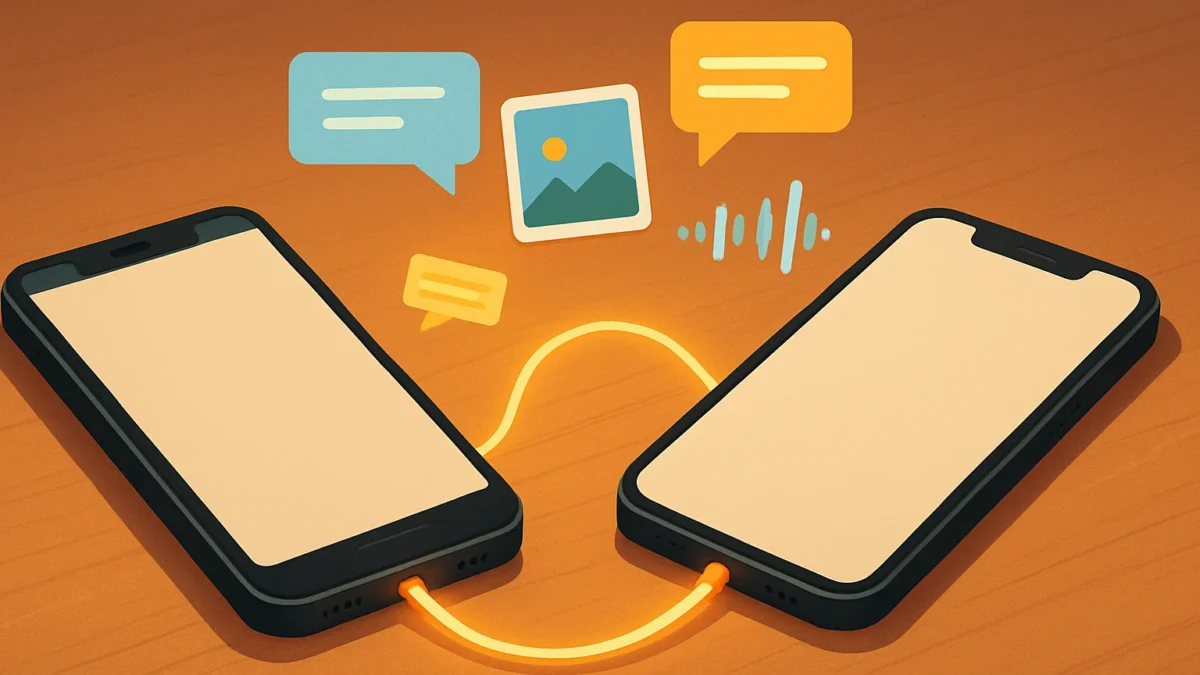
Use WhatsApp’s official device-to-device transfer during phone setup (cable or Move to iOS when moving to iPhone) to move messages and media. Ensure both phones, WhatsApp and OS are updated, use the same phone number, and keep both devices charged and connected until the transfer completes.
Key takeaways
- Use the official wired or Move to iOS method for the safest cross-platform transfer.
- Back up current Android backup (local + Google Account) and iPhone iCloud backup before switching.
- WhatsApp Business transfers are limited; calls and payment messages may not move.
- Keep same phone number, updated apps and a good cable; don’t open WhatsApp on the new device until import finishes.
In this article
Who this is for and what you need
This guide is for anyone switching between Android and iPhone who wants to move their WhatsApp messages, photos, videos and voice notes without losing data. It covers both directions (Android → iPhone and iPhone → Android), the official device-to-device methods, how Google Drive and local Android backups work, and India‑specific tips.
You need: the same WhatsApp phone number on both phones; both phones charged; a USB cable that fits both phones (USB‑C ↔ Lightning or USB‑C ↔ USB‑C as required); latest WhatsApp and OS updates; a stable Wi‑Fi or local connection. Note: WhatsApp Business transfers may be restricted.
Step-by-step
- Update WhatsApp and OS on both phones. Open Play Store / App Store and install updates; update Android or iOS to the latest supported version to avoid compatibility problems.
- Confirm your phone number and free space. On your old phone confirm the WhatsApp account uses the same phone number you’ll use on the new phone. Ensure the target phone has enough free storage for media + messages (transfer copies everything).
- Make a manual backup (Android: local + Google Account; iPhone: iCloud). On Android go to WhatsApp > Settings > Chats > Chat backup and tap BACK UP (this creates a Google Drive and/or local backup if enabled). On iPhone go to Settings > Chats > Chat Backup > Back Up Now. This gives you a fallback if something goes wrong.
- Choose the correct official transfer method. If moving to iPhone use Move to iOS (Apple) or device-to-device cable during iPhone setup. If moving to Android use the Android setup transfer or WhatsApp’s in-app transfer invoked during Android setup. Both methods copy chats locally between devices — not via cloud.
- Connect phones with the cable when prompted in setup. Set up the target phone and at the “Transfer data” step choose to transfer from the other device. Connect both phones with the cable. On Android you may be prompted to scan a QR code shown on the new phone with the old phone.
- Follow the on-screen prompts inside WhatsApp on the old phone. Open WhatsApp on the source device if requested and accept the transfer. Keep both phones unlocked and the WhatsApp app open until transfer completes. This copies messages and media over a secure local link.
- Complete device setup and install WhatsApp on the new phone. Finish the normal setup of the new phone. Install (or open) WhatsApp and register with the same phone number. When prompted choose IMPORT or RESTORE chat history — allow the app to import the transferred data.
- Verify media and messages, then delete old device chat history if desired. Open WhatsApp on the new phone and check chats and media. After confirming everything moved, sign out and delete chats on the old phone for privacy if you’re selling or gifting it.
Also read: Snapchat disables Find Friends for UK children — what changed
Android vs iPhone differences (what moves and what doesn’t)
- Messages, photos, videos, voice messages: Move with official transfer.
- Call history and peer-to-peer payments: Often not transferred — voice/video call logs and payments (UPI/WhatsApp Pay) may not move.
- Cloud backup behavior: Android uses Google Account / Google Drive; iPhone uses iCloud. Those backups are platform-specific and are not cross-restorable.
- WhatsApp Business: Some Business features or catalogs may not transfer across platforms.
Common problems and fixes
- Transfer fails or times out: Use a known-good OEM cable (third-party cheap cables often fail). Keep both phones plugged to power. Reboot both phones and try again.
- ‘Restore’ option not shown on new phone: Make sure you registered with the same phone number and that you did not open WhatsApp on the new device before importing. If you did, uninstall WhatsApp, factory-reset the new phone (if required by the transfer method), then start transfer during initial setup.
- Large backup size stalls: Temporarily remove very large videos or forward media to another storage, then transfer. After transfer, copy those files manually if needed.
- Google Drive backup says only one backup per number: Google account stores one WhatsApp backup per phone number; older backups are overwritten. Create a local copy of the Android backup folder (/WhatsApp/Databases and /WhatsApp/Media) before switching for extra safety.
- iCloud full or backup stuck: Free up iCloud space or temporarily disable iCloud Photo sync during backup. Make a local iPhone backup to your computer if you need an extra copy.
- Transfer keeps asking for permission to access camera/microphone: Grant temporary permissions during transfer; you can revoke them later in system settings.
Tips (India-specific and practical)
- SIM and number: You don’t need to move the SIM physically — you only need the same number active for verification. If you change the number, use WhatsApp’s Change Number before transferring if possible.
- Cable choices in India: USB‑C ↔ Lightning cables are common — buy from official stores or trusted brands (₹700–₹2,500 approx.) to avoid failed transfers.
- Backup local copies: On Android, use a file manager to copy the /WhatsApp folder to a PC or external storage before switching. This is helpful if you use a different Google account on the new phone.
- Data costs: Transfers use local cable or local Wi‑Fi and won’t consume mobile data. But re‑downloading media after setup (if you clear cache) may use data — use Wi‑Fi where possible.
- Privacy: Delete chats on the old phone once you confirm the move, and remove your Google account or factory‑reset the old device if you sell it.
When to consider third‑party tools
Third‑party transfer apps advertise cross‑platform moves but may cost money and need a computer. Use them only if the official methods fail and you accept privacy risks. Always read permissions and prefer tools with clear refund and privacy policies. For most users, official cable/Move to iOS methods work best.
Use the official device‑to‑device transfer (cable/Move to iOS) whenever possible — it’s the safest way to move messages and media. Back up locally and to cloud before switching. Only use third‑party tools as a last resort and keep the same phone number during migration.
Frequently asked questions
Can I transfer WhatsApp chats from Android to iPhone without a cable?
Officially, moving to iPhone works best during iPhone setup using Move to iOS which may use local Wi‑Fi and a setup flow. A wired cable connection is the most reliable. If your phone is already set up, you may need to factory‑reset it to use the transfer option.
Will my WhatsApp media (photos, videos) move when I switch phones?
Yes — the official transfer copies messages plus media (photos, videos, voice notes). Large files may make transfer slower; if any media is missing check the source phone’s WhatsApp media folders and re‑transfer or copy manually.
Do Google Drive or iCloud backups let me move chats across Android and iPhone?
No. Google Drive backups (Android) and iCloud backups (iPhone) are platform‑specific. Cross‑platform transfers use a direct device transfer during phone setup or WhatsApp’s transfer flow.
Does WhatsApp Business support cross‑platform transfers?
WhatsApp Business transfer support is limited and can vary. Check WhatsApp’s help for the latest restrictions; if transfer isn’t supported, export important chats manually or keep a local backup.
What if I already registered WhatsApp on the new phone before transferring?
If you opened WhatsApp on the new phone and completed registration, the import option may be lost. You may need to uninstall WhatsApp or factory‑reset the new phone and restart the transfer during device setup.