How to use Pixel 11 Pro HiLight for WhatsApp messages
Learn how to enable and use Pixel 11 Pro HiLight for WhatsApp messages with step-by-step setup, troubleshooting, privacy notes and tips for better summaries.

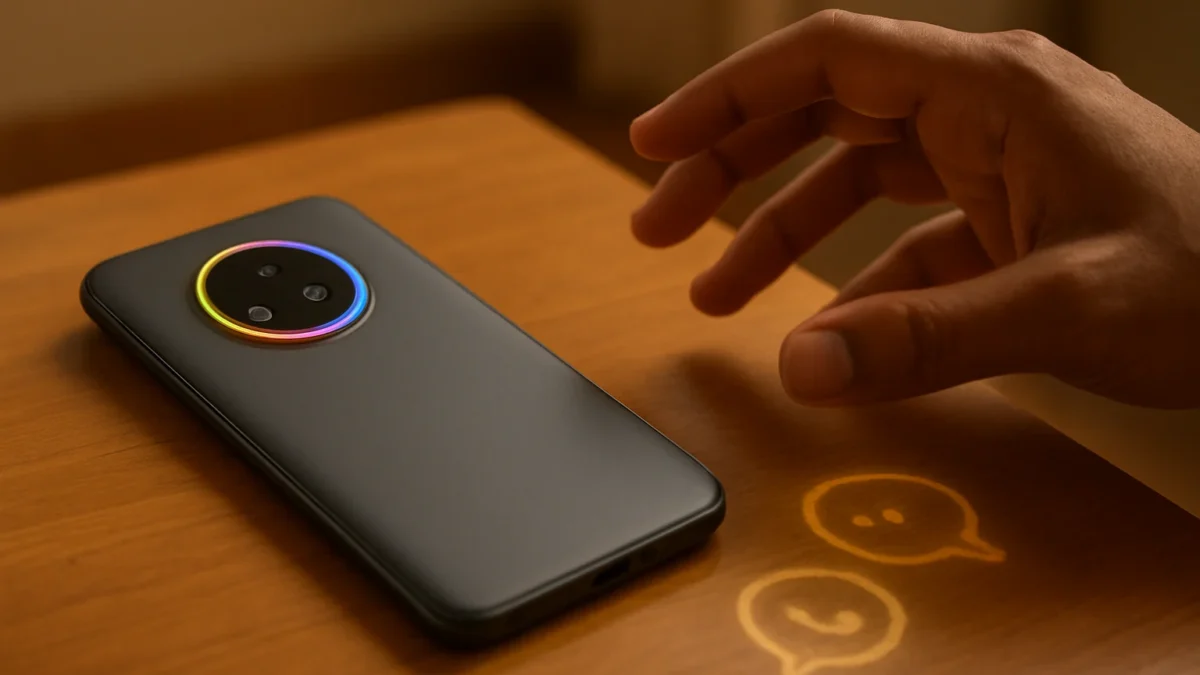
Yes — Pixel 11 Pro’s HiLight can now glow for WhatsApp messages. Update your phone (Android 17 QPR2 / November Pixel Drop), ensure Contacts, Messages and WhatsApp are updated, then enable HiLight for messages or favourites in HiLight settings. Follow the step-by-step below for setup and fixes.
Key takeaways
- HiLight on Pixel 11 Pro now supports WhatsApp message notifications after the November Pixel Drop / Android 17 QPR2 updates.
- Update system and apps, enable HiLight in settings, and set favourite contacts or app-based triggers.
- Troubleshoot by checking notification access, app permissions and battery optimisations.
- HiLight works only on Pixel 11 Pro family (Android) — iPhone users can’t use it.
In this article
Who this is for and what you need
This guide is for Pixel 11 Pro, Pixel 11 Pro XL and Pixel 11 Pro Fold users in India who want the rear HiLight ring to light up when they get WhatsApp messages. You need: (1) a Pixel 11 Pro-series phone running the November Pixel Drop or Android 17 QPR2 that adds message support; (2) the latest WhatsApp app and Contact/Messages apps from the Play Store; (3) basic notification permissions enabled.
Short note: HiLight is a hardware-based visual cue on Pixel 11 Pro phones. It’s an Android-only feature — iPhones don’t support Pixel HiLight.
Step-by-step
- Update your Pixel to the latest system build. Open Settings → System → System update and install any pending updates (Android 17 QPR2 / November Pixel Drop). This is required for message notification support. ([9to5google.com](https://9to5google.com/2026/09/29/pixel-11-hilight-messages-qpr2/?ct=1790774617911&utm_source=openai))
- Update WhatsApp and Google apps. Open Play Store and update WhatsApp, Contacts, Phone and Messages to their latest versions so they can communicate with HiLight. The Google support page lists Phone and WhatsApp among supported apps. ([support.google.com](https://support.google.com/pixelphone/answer/17455810?hl=en-in&utm_source=openai))
- Open HiLight settings. Go to Settings → Display → HiLight (or search “HiLight” in Settings). You’ll see options for calls, messages and Gemini feedback—choose Messages or dedicated WhatsApp options if shown. ([blog.google](https://blog.google/products-and-platforms/devices/pixel/pixel-11-pro-hilight/?utm_source=openai))
- Enable HiLight for messages or WhatsApp. Toggle on HiLight for message notifications. If there’s an option to enable HiLight specifically for “Favourite contacts” or for WhatsApp, enable it so WhatsApp messages trigger the ring. ([support.google.com](https://support.google.com/pixelphone/answer/17455810?hl=en-in&utm_source=openai))
- Set favourites or per-contact colours (optional). If you want different colours for certain people, open Contacts → pick a contact → Edit → HiLight colour or Favourite status, depending on your build. The ring can highlight for favourite contacts and use assigned colours. ([blog.google](https://blog.google/products-and-platforms/devices/pixel/pixel-11-pro-hilight/?utm_source=openai))
- Check WhatsApp notification settings. In Settings → Apps → WhatsApp → Notifications, make sure message notifications are allowed and set to show (not silent). HiLight uses the notification channel to trigger. Also ensure any per-chat mute is off for the chat you want to test.
- Test with a WhatsApp message. Ask a friend to send a message or use a second phone. Face the Pixel 11 Pro down on a table; the HiLight ring should glow when the WhatsApp message arrives.
- Create screenshots (if you want to save steps). Press Power + Volume Down to capture the relevant settings screens. Save or crop images to document the enabled toggles for later reference.
Also read: How to use WhatsApp Contacts tab on iPhone — iOS beta guide · WhatsApp usernames — how they work and the new phone-number privacy
Common problems and fixes
- HiLight doesn’t glow for WhatsApp messages: Confirm system and app updates are installed. Restart the phone. Ensure WhatsApp notifications are allowed and not blocked by Do Not Disturb. If still broken, try toggling HiLight off and on again in Settings. ([support.google.com](https://support.google.com/pixelphone/answer/17455810?hl=en-in&utm_source=openai))
- Only calls work, not messages: Message support rolled out in phases (Android 17 QPR2 / November Pixel Drop). If calls work but messages don’t, check you have the QPR2/Pixel Drop build and updated Messages/Contacts apps. Beta builds earlier added message support; stable rollout may lag by device/region. ([9to5google.com](https://9to5google.com/2026/09/29/pixel-11-hilight-messages-qpr2/?ct=1790774617911&utm_source=openai))
- Colours aren’t the ones you set: HiLight colour assignment might be limited by system settings. Edit the contact’s HiLight/favourite colour in Contacts, then reboot the phone. Third‑party apps claiming per‑app colours may require extra setup and special permissions. ([blog.google](https://blog.google/products-and-platforms/devices/pixel/pixel-11-pro-hilight/?utm_source=openai))
- HiLight conflicts with third‑party notification apps: Uninstall or disable notification-management apps, or give HiLight priority in their settings. Some third‑party HiLight apps require Shizuku or special access and can interfere with the stock HiLight behavior. ([techradar.com](https://www.techradar.com/phones/google-pixel-phones/the-pixel-11-pros-hilight-led-is-bafflingly-limited-out-of-the-box-but-a-new-app-removes-its-shackles?utm_source=openai))
- Battery or performance concerns: HiLight is low-power but if you see battery drain, check Background restrictions and battery optimisations for Phone/Contacts/WhatsApp. Disabling per-app background restrictions helps notifications arrive reliably.
Tips for better summaries, privacy and practical use
Make HiLight more useful
- Use favourites wisely: Mark only close contacts as favourites so the ring isn’t lighting for every message.
- Combine with notification previews: Keep WhatsApp notification previews on the lock screen so you can glance at the sender without opening the chat — HiLight gives a quick visual cue and the preview confirms who messaged.
- Use per‑contact colours sparingly: Too many colours reduce the signal value — choose 3–5 important colours (family, work, emergency) so you can recognise the context at a glance.
Privacy and security to consider
- Ring = visible cue to others: HiLight lights the back of the phone — people nearby can see it. Don’t rely on HiLight for silent privacy-sensitive alerts. Treat it like any visible notification.
- No message content is sent to Google by enabling HiLight: HiLight reacts to local notification channels on your device. However, Google components (Phone, Messages) and WhatsApp still operate under their own privacy rules. If you use third‑party HiLight apps, check what permissions they request. ([blog.google](https://blog.google/products-and-platforms/devices/pixel/pixel-11-pro-hilight/?utm_source=openai))
- Disable for sensitive times: Use Do Not Disturb or turn HiLight off during meetings or privacy-sensitive situations to avoid accidental disclosure.
Android vs iPhone differences
HiLight is a Pixel hardware feature and works only on the Pixel 11 Pro family (Android). iPhones have no access to Pixel hardware so they cannot trigger HiLight. For iPhone users, similar visible alerts depend on third‑party accessories (cases with lights) and not on Pixel features. If you use both platforms, keep expectations platform-specific.
When to contact Google or WhatsApp support
Contact Google Support if HiLight does not appear after a full system update and reboot, or if HiLight settings are missing. Contact WhatsApp support if notification channels appear broken despite Android showing WhatsApp notifications in the system panel. Mention exact Android build and app versions when you raise a ticket.
If you have a Pixel 11 Pro-series phone, enable HiLight for WhatsApp — it’s a low-effort way to get visual alerts when the phone is face down. Skip it if you need strict visual privacy or prefer no visible cues. If it doesn't work immediately, update system and apps, then follow the troubleshooting steps above.
Frequently asked questions
Does HiLight really work with WhatsApp messages?
Yes. Following the November Pixel Drop / Android 17 QPR2 updates HiLight on Pixel 11 Pro phones can trigger for WhatsApp messages. Make sure your system and apps are updated and notifications allowed.
Which Pixel models support HiLight for WhatsApp?
HiLight message support is available on Pixel 11 Pro, Pixel 11 Pro XL and Pixel 11 Pro Fold. Regular Pixel models do not have the same rear HiLight hardware.
Can I set different colours for different WhatsApp contacts?
You can assign colours or mark favourites in Contacts to give priority colours for some people, but per‑contact colour options depend on your phone’s HiLight UI and software build. Third‑party apps offer more granular control but need extra permissions.
My HiLight works for calls but not messages — what now?
If calls trigger HiLight but messages don’t, verify you installed the November Pixel Drop or Android 17 QPR2 update, then update Messages, Contacts and WhatsApp. Restart the phone and recheck notification channels and Do Not Disturb settings.
Will enabling HiLight leak my WhatsApp message content to Google?
No. HiLight reacts to local notification events on your phone. It does not send your message content to Google simply by being enabled. Always review permissions for any third‑party HiLight apps before installing.
Sources
- Android 17 QPR2 enables Pixel 11 Pro HiLight for messages
- Use HiLight to stay informed on your phone – Pixel Phone Help
- Pixel 11 Pro HiLight: Stay updated, screen-free
- The Pixel 11 Pro's HiLight LED is bafflingly limited out of the box, but a new app removes its shackles
- Pixel 11 HiLight now works with WhatsApp messages too – 9to5Google
- Pixel 11 series: Your most personal Pixel yet – Google blog