9 Snapchat privacy settings to change in India right now
Change these 9 Snapchat privacy settings to protect location, AI data and contacts. Step-by-step toggles for Android & iPhone and why each matters.


Change Ghost Mode (Snap Map), disable background location at the phone level, limit My AI and AI data, restrict contact and backup permissions, tighten Story audience, clear location history and data downloads, and remove third‑party access. Each toggle reduces who (including Snapchat’s AI) can see or use your data.
Key takeaways
- Ghost Mode hides you on the Snap Map but doesn’t stop Snapchat from accessing device location unless phone-level permission is off.
- Limit or clear My AI data and use Family Center for teens; AI features can use location if allowed.
- Restrict contacts, camera/mic, and cloud backup permissions to reduce data exposure.
- Review Story audience, location history, data downloads and third‑party app access regularly.
In this article
- 1. Ghost Mode (Snap Map)
- 2. Turn off location permission at the phone level
- 3. My AI / AI features — limit and clear data
- 4. Contact and Quick Add permissions
- 5. Camera, mic and photo library permissions
- 6. Story audience and ‘See My Location’ for stories
- 7. Location history and Map submissions
- 8. Data downloads, account export and deleting old data
- 9. Third‑party access, connected apps and advertising settings
- How we picked
- Frequently asked questions
- Sources
1. Ghost Mode (Snap Map)
What it is: Ghost Mode hides your location from other Snapchat users on the Snap Map. It’s the map’s “off” switch for friends.
Best for: Anyone who wants friends not to see their live location on the map.
- Pros: Stops friends from seeing your map pin; easy to toggle.
- Cons: Ghost Mode does not necessarily stop Snapchat’s servers or in‑app AI from accessing location — device permissions matter. Evidence and complaints in recent lawsuits highlight this gap. ([help.snapchat.com](https://help.snapchat.com/hc/en-us/sections/5689797575188-My-Location-and-Ghost-Mode?utm_source=openai))
How to start (Android & iPhone)
- Open Snapchat and go to the camera screen. Swipe down or tap the Map pin to open Snap Map.
- Tap the Settings gear in the top-right and turn on Ghost Mode.
- Confirm by checking the Ghost Mode toggle under Who Can See My Location. ([help.snapchat.com](https://help.snapchat.com/hc/en-us/sections/5689797575188-My-Location-and-Ghost-Mode?utm_source=openai))
2. Turn off location permission at the phone level
What it is: Denying Snapchat access to device location stops the app from reading location data outside of the map UI.
Best for: People who want to prevent any background location access (including for AI features).
- Pros: More robust than Ghost Mode alone; prevents system-level location access.
- Cons: Some location-based features (filters, Snap Map updates) won’t work.
How to start
- Android: Settings > Apps > Snapchat > Permissions > Location > Deny (or choose “Allow only while using the app” if you need it occasionally).
- iPhone: Settings > Snapchat > Location > Never (or While Using App). If you want stricter control set to Never. ([igeeksblog.com](https://www.igeeksblog.com/turn-off-location-on-snapchat/?utm_source=openai))
Also read: WhatsApp usernames — how they work and the new phone-number privacy · Snapchat disables Find Friends for UK children — what changed
3. My AI / AI features — limit and clear data
What it is: Snapchat’s in‑app chatbot and AI tools that can use chat content and (if allowed) location to personalise responses.
Best for: Parents, teens, and privacy-conscious users who want to reduce AI access to personal info.
- Pros: Keeps sensitive chat and location data out of AI training and processing.
- Cons: You lose convenience and personalised replies from My AI.
How to start
- Profile > Settings > Privacy Controls (or Account Actions) > Clear My AI Data / Clear Conversations.
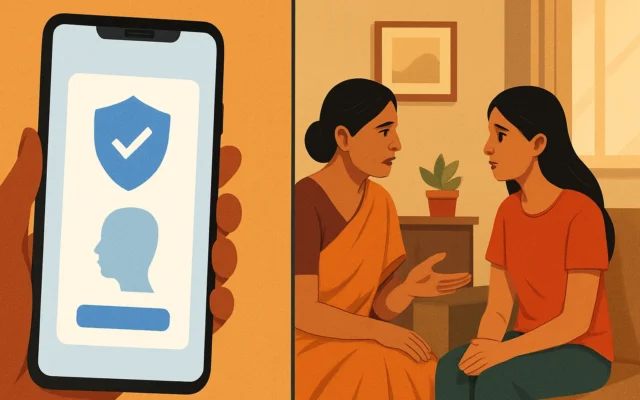
- Parents: use Family Center to restrict or block My AI responses for linked teen accounts.
- Consider unpinning or hiding My AI in the chat list (Snapchat+ may offer stronger control). Recent lawsuits warn AI may still access location data unless phone permissions are off. ([allaboutcookies.org](https://allaboutcookies.org/snapchat-ghost-mode-lawsuit?utm_source=openai))
4. Contact and Quick Add permissions
What it is: Snapchat uses your contacts and mutual friend data to suggest accounts (Quick Add) and connect phone numbers.
Best for: Users who want fewer strangers finding them via their phone number or contacts.
- Pros: Reduces discovery via phonebook and limits friend suggestions.
- Cons: Makes it harder to find real-life friends quickly.
How to start
- Settings > See Me in Quick Add > toggle off.
- Phone-level: Settings > Apps > Snapchat > Permissions > Contacts > Deny (Android) or Settings > Snapchat > Contacts > Off (iPhone).
5. Camera, mic and photo library permissions
What it is: App permissions that let Snapchat capture and store images, audio and access saved photos.
Best for: Users who only want ephemeral snaps and not background media access.
- Pros: Narrower access limits data Snapchat can collect and retain.
- Cons: Disabling will break core app functions (sending snaps, using lenses).
How to start
- Phone-level: Settings > Apps > Snapchat > Permissions and toggle Camera / Microphone / Storage to your comfort level.
- On iPhone pick “Ask Next Time” for camera/mic if you want temporary access prompts.
6. Story audience and ‘See My Location’ for stories
What it is: Controls who can view your Story or see you in location-related story feed.
Best for: Users who post Stories but want to limit who can view or find location-linked posts.
- Pros: Prevents wide sharing of snaps that reveal place and time data.
- Cons: Smaller audience reduces reach if you use Stories for promotion.
How to start
- Profile > Settings > View My Story > choose Friends or Custom (avoid Everyone or public submissions to Map).
- Also check Snap Map settings to avoid submitting Map Snaps that reveal your exact location. ([values.snap.com](https://values.snap.com/privacy/privacy-by-product/snap-map?lang=en-GB&utm_source=openai))
7. Location history and Map submissions
What it is: Snaps you submit to public stories or the Map may carry location info for a period (Map Snaps often persist).
Best for: Anyone who posts photos from private places (home, workplace) and doesn’t want place history tied to their account.
- Pros: Avoids creating a searchable trail of where you’ve been.
- Cons: You can’t easily feature local content or events on the Map.
How to start
- Avoid submitting Snaps to My Story Public or Map; manually delete Map Snaps and Story posts you don’t want stored.
- Review account activity and clear saved Map submissions where possible. Note that some map activity may be retained by Snap for product use. ([values.snap.com](https://values.snap.com/privacy/privacy-by-product?lang=en-GB&utm_source=openai))
8. Data downloads, account export and deleting old data
What it is: Snapchat lets you request your account data and delete certain stored items.
Best for: Users who want to audit what Snap holds about them and remove old content or AI training data.
- Pros: You learn what’s stored and can remove sensitive items.
- Cons: Deleting some records doesn’t guarantee removal from backups or third parties.
How to start
- Profile > Settings > My Data or Account Actions > Request Data. Review and delete chats, Map submissions and saved content you no longer want.
- Clear My AI Data separately under Privacy Controls if you use AI features. Lawsuits and reports recommend regular clearing if you’re worried about AI access. ([allaboutcookies.org](https://allaboutcookies.org/snapchat-ghost-mode-lawsuit?utm_source=openai))
9. Third‑party access, connected apps and advertising settings
What it is: Permissions you gave to third‑party apps, and ad / personalization controls inside Snapchat.
Best for: Users who want to limit cross‑app data sharing and ad targeting.
- Pros: Cuts off extra routes for data to leak or be correlated.
- Cons: Disconnecting integrations may stop features you like.
How to start
- Settings > Privacy Controls > Connected Apps (or similar) and revoke any apps you no longer trust.
- Settings > Ad Preferences and toggle off personalised ads where offered; also check account permissions for sharing with partners described in Snap’s privacy pages. Recent regulatory filings and privacy docs show Snap may use location for product and ad personalisation if allowed. ([values.snap.com](https://values.snap.com/privacy/privacy-by-product?lang=en-GB&utm_source=openai))
How we picked
We chose nine controls that matter most to Indian Snapchat users worried about location and AI privacy. Picks are based on Snapchat’s own help and privacy pages, recent legal complaints about My AI and Ghost Mode, and Snap’s regulatory disclosures noting where location and AI data are used. We prioritised steps you can do today on Android or iPhone without extra apps. ([help.snapchat.com](https://help.snapchat.com/hc/en-us/sections/5689797575188-My-Location-and-Ghost-Mode?utm_source=openai))
| Setting | Why change it | Quick action |
|---|---|---|
| Ghost Mode | Hides you from friends on Map | Snap Map > Settings > Ghost Mode |
| Phone location | Stops app-level/background access | Phone Settings > Apps > Snapchat > Location > Deny |
| My AI | AI can use chats & location | Settings > Privacy Controls > Clear My AI Data |
| Contacts | Reduces discovery via phonebook | Phone Settings > Snapchat > Contacts > Off |
| Story audience | Limits public place posts | Settings > View My Story > Friends/Custom |
Turn on Ghost Mode and immediately deny background location at the phone level if you value location privacy. Parents should clear My AI data and use Family Center for teens. If you rely on location features, use "While Using" permission and audit AI and third‑party access regularly.
Frequently asked questions
Does Ghost Mode stop Snapchat from knowing my location?
Ghost Mode hides your location from other Snapchat users on the Snap Map, but it does not always stop Snapchat from accessing your device location. To fully block app access, change location permission in your phone settings to Never or While Using. ([help.snapchat.com](https://help.snapchat.com/hc/en-us/sections/5689797575188-My-Location-and-Ghost-Mode?utm_source=openai))
Can My AI access my location if Ghost Mode is on?
Lawsuits allege My AI can access location data even with Ghost Mode on. If you want to be safe, disable Snapchat’s location permission at the phone level and clear My AI data from Privacy Controls. ([allaboutcookies.org](https://allaboutcookies.org/snapchat-ghost-mode-lawsuit?utm_source=openai))
How do I stop strangers finding me on Snapchat?
Turn off See Me in Quick Add, deny Contacts permission, set View My Story to Friends or Custom, and avoid using your phone number in your profile. These steps reduce discovery via friend suggestions and contact syncing.
Will deleting My AI conversations remove data from Snap completely?
Clearing My AI data removes it from your account’s accessible history, but some data may remain in backups or logs. Request a data download to review what Snap holds and follow account actions to delete what you can. ([values.snap.com](https://values.snap.com/privacy/privacy-by-product?lang=en-GB&utm_source=openai))
What should parents do to protect teens on Snapchat?
Use Family Center to monitor and restrict My AI replies, turn off background location at the device level, clear AI conversations regularly, and review friends and privacy settings with your teen. Recent legal actions underscore the need for phone-level controls. ([allaboutcookies.org](https://allaboutcookies.org/snapchat-ghost-mode-lawsuit?utm_source=openai))