Google Search AI Mode vs Classic Search: a practical India guide
Compare Search AI Mode and classic Google Search in India — privacy, Drive/Wallet/Gemini integrations, speed, practical tasks and how to enable Search AI Mode.

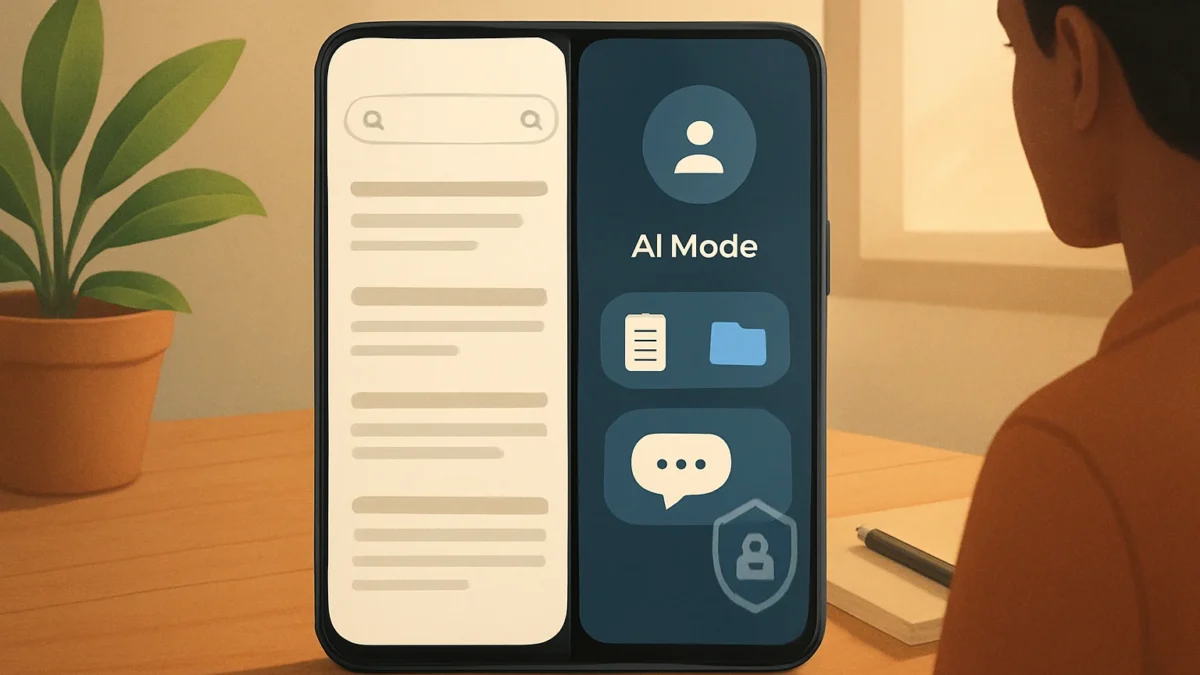
Search AI Mode gives more personalised, conversational answers by optionally connecting Wallet, Drive and the Gemini app; classic Search is faster for simple queries and safer for privacy-conscious users. For most Indian users who want contextual help (bills, docs, travel), try AI Mode with opt-ins; keep classic Search for quick lookups and sensitive data.
Key takeaways
- Search AI Mode uses Personal Intelligence to use Wallet, Drive and Gemini for context if you opt in.
- Classic Search is quicker and exposes less personal data by default.
- Enable AI Mode and connect apps from Search settings — Google asks for explicit opt-in per app.
- Privacy trade-offs: Google says connected content won’t directly train models, but some review/processing can occur.
- Choose based on task: documents, spending or travel plans (AI Mode); quick facts, news or private data (Classic).
| Key feature | Search AI Mode (Personal Intelligence) | Classic Google Search |
|---|---|---|
| What it uses for answers | Search + optional connected apps (Wallet, Drive, Gemini app, Photos, Gmail) to give personalised replies. | Public web pages, indexed sites and Knowledge Graph — no access to your private Google content unless you upload it. |
| Best for | Tasks that need personal context: budgets, travel plans from your emails, summarising your Drive docs, chat with Gemini context. | Quick facts, news, broad research, shopping comparisons without sharing account data. |
| Privacy | Explicit opt-in required. Google says connected content is not directly used to train models, but some processing and human review steps exist for safety. | No automatic access to your private Wallet/Drive/Gemini data. |
| Speed | May be slightly slower for multi-step personalised replies; uses generative AI to compose answers. | Usually faster for single fact lookups and simple queries. |
| Cost | Feature rollout is free to eligible personal accounts; some Personal Intelligence features were first for paid tiers but are expanding. (Varies by Google subscriptions.) | Free. |
| How to enable | Open Google Search on phone, tap AI Mode, follow prompts to opt in and connect apps in Personal Intelligence settings. | Default — no action needed. |
In this article
- What changed: Wallet, Drive and Gemini in Search AI Mode?
- How personal is Personal Intelligence — privacy explained
- Real-world task tests: which mode wins?
- Speed and reliability: when generative answers help or confuse
- How to enable Search AI Mode and connect Wallet/Drive/Gemini (step-by-step)
- Security checks before you connect anything
- Which one should you choose?
- Short tips to get the best from Search AI Mode
- Frequently asked questions
- Sources
What changed: Wallet, Drive and Gemini in Search AI Mode?
Google has started rolling out the ability to connect Google Wallet to Personal Intelligence inside Search’s AI Mode, with Google Drive and the Gemini app promised in the coming weeks. The idea: if you opt in, AI Mode can read your spending, trip tickets, documents and Gemini chats to give personalised, context-aware answers inside Search. Google’s announcement and support pages explain this is optional and controlled by a per-app opt-in flow.
How personal is Personal Intelligence — privacy explained
Google says connected apps won’t be used to directly train its large models. However, certain safety and review processes can touch user content in limited ways. The company notes steps to protect data, but also warns users to avoid connecting highly sensitive content if they don’t want it seen for review or abuse handling. In short: AI Mode adds power, but you must accept some extra processing to get personalised results.
Practical privacy tips for India users
- Only connect apps you need for a task — e.g., Wallet for spending summaries, Drive for a specific document.
- Keep sensitive files (tax documents, legal contracts) out of connected folders, or disconnect apps when done.
- Check Google’s Personal Intelligence and Gemini privacy settings to turn off history or training options if available.
Also read: Google Gemini can now control your Mac — practical guide · Use Google Gemini on CarPlay: 9 tips for iPhone drivers
Real-world task tests: which mode wins?
Below are common Indian user tasks and how each mode performs in practice.
1. “How much did I spend on travel last month?”
Search AI Mode (with Wallet connected): can summarise transactions, spot ticket charges and show categories. Classic Search: won’t access your Wallet, so you must open your bank/UPI app or Wallet manually.
2. “Make a trip itinerary from my flight and hotel emails”
Search AI Mode (with Gmail/Drive/Gemini connections where relevant): can pull in booking emails or PDFs, extract times and create an itinerary. Classic Search: can only show public travel suggestions — you must do copy-paste manually.
3. “Find the latest RBI guideline on UPI limits”
Classic Search wins for regulatory or time-sensitive official documents — it returns authoritative government pages fast. AI Mode can summarise rules but you should open the official RBI/ NPCI page to confirm legal details.
4. “Summarise my meeting notes in Drive”
Search AI Mode (Drive connected): quick, contextual summaries and action-item lists. Classic Search: no access — you must open Drive yourself and use Drive’s built-in tools.
Speed and reliability: when generative answers help or confuse
AI Mode composes conversational answers, often with suggested next steps. That helps multi-step tasks but can introduce hallucinations — answers that sound plausible but are wrong. Classic Search returns source links so you can verify quickly. For time-sensitive or legal matters, prefer classic Search and open original sources.
How to enable Search AI Mode and connect Wallet/Drive/Gemini (step-by-step)
- Open the Google app on your Android or iPhone and tap the Search bar to enter AI Mode. If you do not see AI Mode, update the Google app from the Play Store or App Store and check availability for your account.
- In AI Mode settings, look for Personal Intelligence or Connected Apps and choose which apps to connect (Google Wallet, Google Drive, Gemini app, Photos, Gmail).
- Follow the explicit opt-in prompts for each app. Google will explain what data is accessed and ask permission per app.
- To stop sharing, return to the same settings and disconnect any app at any time.
Note: rollout timing varies by account and country. In India, Wallet rollout began first; Drive and Gemini connections are coming in the next weeks as per Google’s announcement.
Security checks before you connect anything
- Use a Google account protected with two-factor authentication.
- Review which Drive folders are accessible and move sensitive files to an unconnected folder.
- Regularly review connected apps under your Google Account security and revoke what you no longer need.
Which one should you choose?
If you frequently need personalised help — summarising documents, pulling booking details from emails, getting spending insights from Wallet or using Gemini with shared context — try Search AI Mode but opt in only for the apps you need. If you mostly do quick lookups, news, official research or handle highly sensitive personal/financial documents, stick with classic Search or use AI Mode without connecting private apps. Switch modes anytime from the Google app settings.
Short tips to get the best from Search AI Mode
- Start with one connection (Wallet or Drive) and test on non-sensitive tasks.
- Ask follow-up questions — AI Mode keeps context, so you can refine results conversationally.
- Always ask for sources or original documents when AI Mode makes factual claims about laws, numbers or official rules.
Try Search AI Mode if you want contextual, multi-step help (travel plans, spending summaries, document summaries) — but opt in only for the apps you need and avoid connecting highly sensitive files. Keep classic Search for quick facts, official documents and privacy-first searches.
Frequently asked questions
Is Search AI Mode available in India?
Yes. Google has rolled out Personal Intelligence features in AI Mode to India, starting with Wallet and with Drive and the Gemini app following in the coming weeks. Availability can vary by account and device.
Will my Drive or Wallet data be used to train Google's models?
Google states connected content is not directly used to train its base models. Still, some processing and limited review steps for safety or abuse handling may occur. You can disconnect apps anytime.
How do I turn off Personal Intelligence in Search?
Open the Google app, go to AI Mode or Search settings, find Personal Intelligence or Connected Apps, and revoke permissions for Wallet, Drive or Gemini. This immediately stops Search AI Mode accessing those apps.
Does AI Mode cost money?
Using AI Mode in Search is free for most basic features. Some Personal Intelligence features were initially offered to paid Google AI tiers but Google is expanding availability. Check your Google account prompts for any subscription requirements.
Is classic Search safer for sensitive queries?
Yes. Classic Search does not access your private Wallet, Drive or Gemini data by default, so it is safer for queries involving confidential or sensitive topics.