Windows People Widget: show WhatsApp contacts & apps
Step-by-step guide to enable and customise the Windows People Widget, add WhatsApp and other app contacts, manage privacy & notifications, and fix common issues.

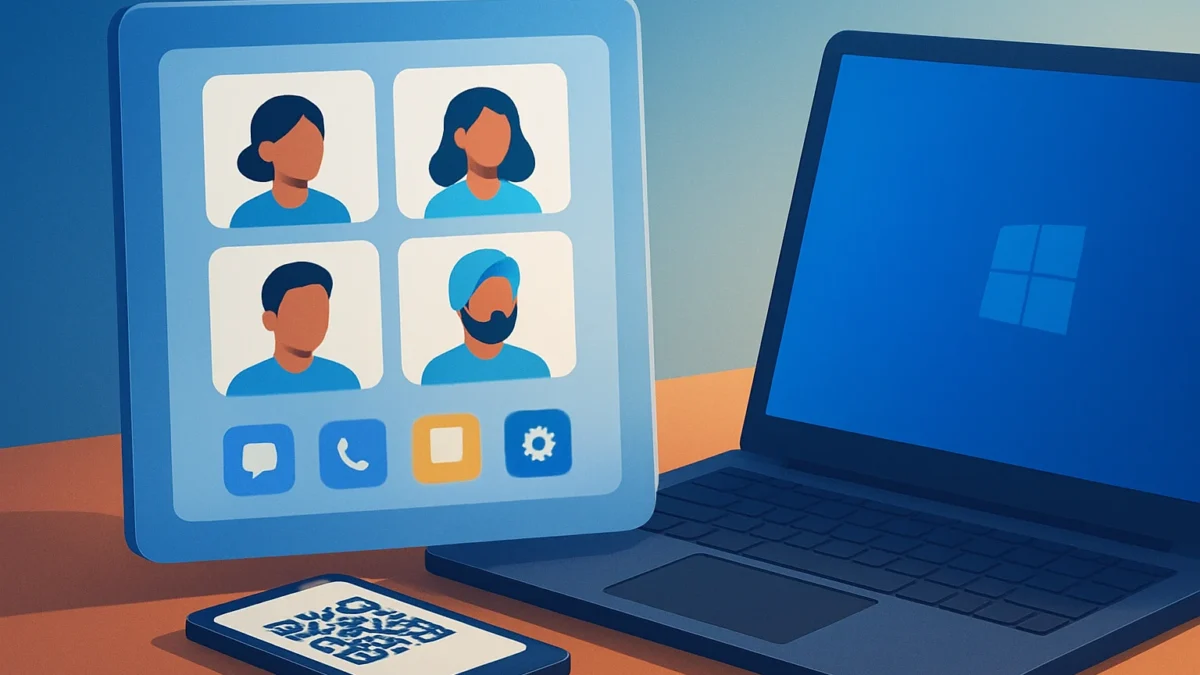
The Windows People Widget (Widgets board) can show contacts from Phone Link, WhatsApp and supported messaging apps in the Widgets board. Enable the People widget (Windows key + W → + → People), set up Phone Link and WhatsApp on your PC, then allow the widget to access those apps’ contacts in Settings to open conversations quickly.
Key takeaways
- Add the People widget from the Widgets board (Windows key + W → + → People).
- Enable Phone Link and WhatsApp on your PC first so contacts appear.
- Control which apps contribute contacts under Settings → Privacy → Contacts and Widgets.
- Use taskbar + keyboard shortcuts for faster access to the People widget.
- Common issues: update Windows Insider build or reinstall apps; check permissions.
-
In this article
1. Enable the People widget
What it is: The People widget is a new widget for the Windows 11 Widgets board that surfaces your top contacts and opens conversations in the right messaging app.
Best for: Anyone who wants one-click access to frequent chats without opening each app first.
Pros: Fast access, integrates multiple apps. Cons: Requires supported Windows build and app setup first.
How to start
- Press Windows key + W to open the Widgets board.
- Click the + (widget picker) and add the People widget.
- If you don’t see People, update Windows (Insider builds may get it first) and restart.
-
2. Add WhatsApp contacts to the widget
What it is: When WhatsApp (desktop or Phone Link integration) is set up, the People widget can show recent or pinned WhatsApp contacts and let you open a chat directly.
Best for: Users who use WhatsApp on PC or mirror their Android phone to Windows.
Pros: Open chats fast, stay in desktop workflow. Cons: WhatsApp must be installed and signed-in; not all WhatsApp features appear inside the widget.
How to start
- Install WhatsApp Desktop from Microsoft Store or set up WhatsApp through Phone Link (for Android). Sign in using QR code.
- Open the People widget; if prompted, allow it to access Phone Link and WhatsApp.
- Select a contact to open the conversation in WhatsApp Desktop or the Phone Link session.
- Pin contacts inside the widget if you want them to stay at the top.
-
Also read: How to use WhatsApp Contacts tab on iPhone — iOS beta guide · WhatsApp Close Friends: 9 Status privacy settings Indians need
3. Add Phone Link and Android contacts
What it is: Phone Link (previously Your Phone) mirrors an Android device and its recent contacts. The People widget can pull those Phone Link contacts so you can call or message from Windows.
Best for: Android users who already use Phone Link to mirror calls and messages.
Pros: Full phone-like access for messages and calls. Cons: Phone Link needs Bluetooth/Wi‑Fi pairing and ongoing connection.
How to start
- Open Phone Link on your PC and follow the pairing flow with the Link to Windows companion on your Android phone.
- Allow contacts and messages access on your phone when prompted.
- Open the People widget and grant permission to show Phone Link contacts.
-
4. Add Outlook and other app contacts
What it is: The People widget can surface contacts from Outlook and other apps that support Windows contact contribution APIs.
Best for: Users who use Outlook/Teams or other communication apps on Windows and want a single contact surface.
Pros: Centralises work and personal contacts. Cons: App support varies; some apps must explicitly allow contributing contacts.
How to start
- Make sure the app (Outlook, Teams, or supported third-party app) is installed and signed in.
- Open the app’s settings to ensure it shares contacts with Windows (some apps expose this as a permission or integration setting).
- Grant the People widget access if Windows asks.
-
5. Manage privacy and notification settings
What it is: Control which apps can contribute contacts and whether the People widget shows notifications or rich actions.
Best for: Anyone cautious about sharing contacts across apps and services.
Pros: Keeps control in your hands. Cons: Turning off permissions can limit functionality.
How to start
- Open Settings → Privacy & security → Contacts. Toggle which apps can access contacts.
- Open Settings → Personalisation → Widgets (or Widgets board) to manage widget-specific permissions and notification settings.
- To stop a single app from contributing, change its permission in Apps → Installed apps or in the app’s own settings.
-
6. Quick tips for faster access
What it is: Shortcuts and small tricks to reach the People widget faster and make it more convenient.
Best for: Power users and anyone who wants one‑tap contact access.
Pros: Speeds up daily tasks. Cons: Minor learning curve for shortcuts.
How to start
- Use Windows key + W to open Widgets quickly. Press Esc to close.
- Pin the Widgets button to the left of the taskbar (if hidden) for one-click access.
- Pin frequent contacts inside the People widget so they’re always visible.
- Create a taskbar shortcut for WhatsApp Desktop or Phone Link for even faster launches.
-
7. Troubleshooting common issues
What it is: Simple checks when contacts don’t appear or the widget won’t open conversations.
Best for: Users who already followed setup but see no contacts or wrong behaviour.
Pros: Quick fixes you can try at home. Cons: Some issues need Windows updates or app updates.
How to start
- Check Windows update: the People widget is rolling out in preview/Insider builds; update Windows and join the Insider channel if needed.
- Restart the app and the PC. Reinstall WhatsApp Desktop or Phone Link if needed.
- Confirm permissions: Settings → Privacy → Contacts and Widgets; allow the required apps.
- If Phone Link is used, ensure your phone is connected (Wi‑Fi or Bluetooth) and the Link to Windows companion is active.
- Still failing? Sign out and sign back into the app (WhatsApp Desktop) or run the Windows Store repair for that app.
How we picked
We focused on the practical steps Indian Windows 11 users need to enable and use the People widget with WhatsApp and Phone Link. Sources include Microsoft documentation for People APIs, news from Windows-focused outlets and hands-on previews of the experimental Windows 11 build where the People widget appears. Emphasis is on permissions, app setup, quick access, and fixes you can do without technical tools.
| Item | Best for | Ease | Notes |
|---|---|---|---|
| Enable People widget | All users | Easy | May require Windows update/Insider build |
| Add WhatsApp | WhatsApp users on PC/Android | Moderate | Requires WhatsApp Desktop or Phone Link |
| Add Phone Link | Android phone owners | Moderate | Needs pairing and connection |
| Add Outlook & apps | Work users | Easy–Moderate | Depends on app support |
| Privacy & notifications | Privacy-conscious users | Easy | Turn off permissions to limit sharing |
| Quick access tips | Power users | Easy | Keyboard and taskbar shortcuts speed use |
| Troubleshooting | Anyone with issues | Easy–Advanced | Often fixed by updates or reinstall |
Try the People widget if you use WhatsApp or Phone Link on Windows 11 — it gives fast access to frequent chats. If you only use web WhatsApp or an unsupported app, wait until the widget reaches your Windows build or the app adds integration. Keep permissions tight for privacy.
Frequently asked questions
Does the People widget work with WhatsApp Web?
The widget opens conversations in the installed WhatsApp Desktop app or via Phone Link. If you only use WhatsApp Web in a browser, the widget may not open chats directly—install WhatsApp Desktop or set up Phone Link for full integration.
Which Windows 11 build has the People widget?
The People widget has appeared in Experimental/Insider preview builds (builds in the 26340 series). If you don’t see it, check Windows Update or join the Windows Insider Program to get preview builds sooner.
How do I stop an app from sharing contacts with the People widget?
Open Settings → Privacy & security → Contacts and toggle off the app. You can also change widget permissions under Personalisation → Widgets to restrict which apps contribute to the People widget.
Can I pin a contact in the People widget?
Yes. The People widget supports pinning frequent contacts so they stay at the top for one‑click access. Use the pin action shown on a contact inside the widget.
What if clicking a contact does nothing?
Check that the underlying app (WhatsApp Desktop, Phone Link, Outlook) is installed and signed in. Also confirm permissions in Settings → Privacy → Contacts and restart the PC. Reinstall the app or update Windows if problems continue.