WhatsApp backup: 7 things Indians must know about the new cloud option
A clear 7‑point guide on WhatsApp backup: how the new in‑app cloud backup (no Google Drive) works, privacy, storage, setup, restores and troubleshooting for Indian users.

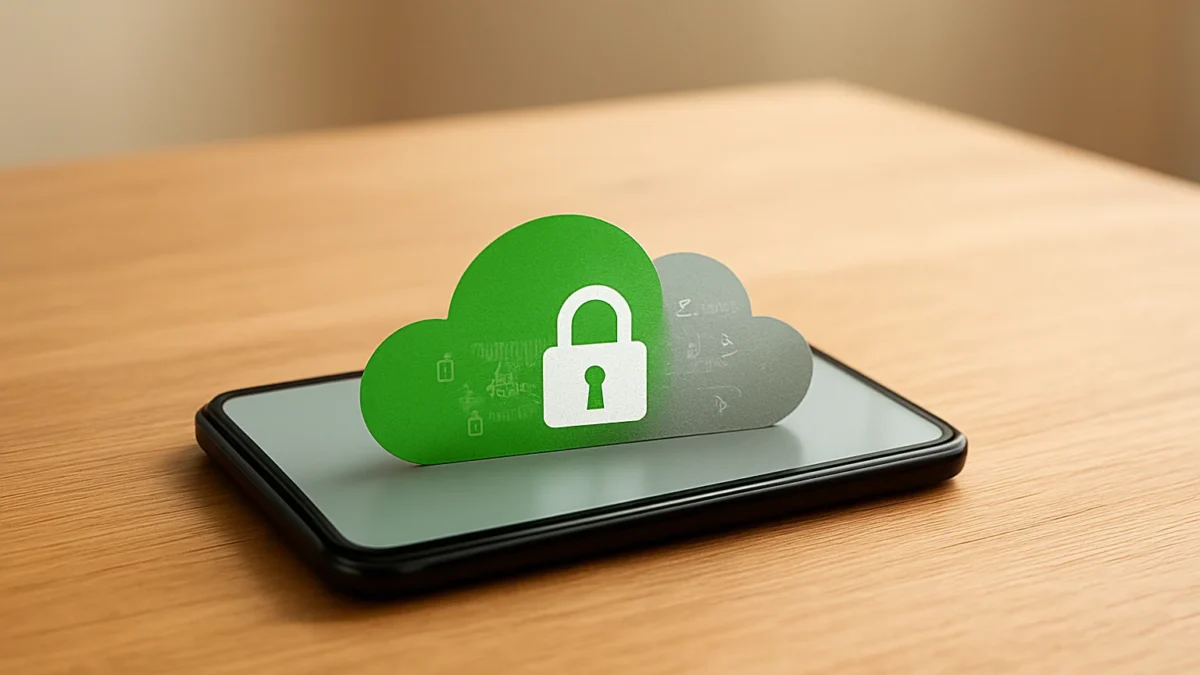
WhatsApp now offers a built‑in cloud backup option (rolling out in beta on Android) that stores end‑to‑end encrypted backups on WhatsApp’s servers instead of Google Drive. It’s optional, gives about 2 GB free in early tests, and works like other backups for restores — but check encryption and account details before switching.
Key takeaways
- WhatsApp’s own cloud backup is an optional, in‑app alternative to Google Drive (Android beta).
- Backups remain end‑to‑end encrypted if you enable the feature or set a recovery key.
- Early reports mention ~2 GB free for WhatsApp cloud backups; Google Drive still works.
- Switch only after you can restore successfully — test with a small backup.
- If you prefer full control, keep local backups or continue using Google Drive.
In this article
- 1. What is the new WhatsApp cloud backup?
- 2. How is privacy and encryption handled?
- 3. What about storage limits and costs for Indians?
- 4. How does switching affect phone change and reinstall?
- 5. Local backup vs cloud backup — which should Indians prefer?
- 6. Common troubleshooting steps
- 7. What this means for Indian users and privacy law context
- How we picked
- Frequently asked questions
- Sources
1. What is the new WhatsApp cloud backup?
What it is: WhatsApp has started testing a first‑party cloud backup option on Android that stores your chat backup on WhatsApp’s own servers instead of using Google Drive. Early beta reports say the feature is optional and appears in the app’s backup settings.
Best for: Android users who want a simple, free cloud backup option without linking Google Drive.
Pros
- Doesn’t need Google Drive account or Google storage space (early reports show ~2 GB free).
- Designed to be end‑to‑end encrypted like existing encrypted backups.
- Built into the app, so simpler setup for some users.
Cons
- Rolling out in beta — not yet available to all users and may change.
- Less control than a Google account backup for users who manage multiple backups centrally.
- Unknown long‑term storage limits, retention or policy differences compared with Google.
How to start
- Open WhatsApp > Settings > Chats > Chat backup.
- If you see “Backup provider” or a WhatsApp storage option, choose it and follow prompts to create the first backup.
- Enable end‑to‑end encrypted backup or set a recovery password/64‑digit key when offered.
2. How is privacy and encryption handled?
What it is: WhatsApp says backups can be end‑to‑end encrypted so only you can read them. For previous cloud backups WhatsApp offered password or 64‑digit key options; the new cloud backup uses a similar encrypted model and Meta says it cannot read the backed up content.
Best for: Users who want cloud convenience while keeping data encrypted.
Pros
- Backups are encrypted before leaving your phone — WhatsApp/Google can’t read them without your key/password.
- Option to store or control the recovery key/password yourself.
Cons
- Lose the password or 64‑digit key and you may permanently lose access to backups.
- Encrypted backups still depend on provider policies for retention — read terms before relying fully on them.
How to start
- In Chat backup, enable encrypted backup and choose a password or copy the 64‑digit key to a safe place.
- Wait for the encryption step to finish during the initial backup — do not interrupt.
Also read: How to use Pixel 11 Pro HiLight for WhatsApp messages · How to use WhatsApp Contacts tab on iPhone — iOS beta guide
3. What about storage limits and costs for Indians?
What it is: Reports from the beta rollout mention about 2 GB free for WhatsApp’s own cloud backups in current tests. Google Drive backups still count against your Google storage quota when you use Drive.
Best for: Users with small to medium chat histories who have limited Google storage and want a free alternative.
Pros
- Early beta gives a small free allocation, which may be enough for messages and limited media.
Cons
- 2 GB may not hold years of media‑heavy chats; you may need to delete large media or use selective backup.
- Paid tiers or limits are not yet clear — watch official WhatsApp/Meta announcements.
How to start
- Check your current chat size: Settings > Storage and data > Manage storage.
- Before switching, delete big videos or enable backups without media to fit the free allotment.
4. How does switching affect phone change and reinstall?
What it is: A cloud backup (Google Drive or WhatsApp cloud) is used to restore chats when you reinstall WhatsApp or move to a new phone. The restore works only if you use the same phone number and (if applicable) the same encrypted backup key.
Best for: People switching phones who want a straightforward restore.
Pros
- Restore flow is similar: verify your number, then restore from detected backup.
Cons
- If you switch between providers (WhatsApp cloud Google Drive), ensure the backup exists on the provider you choose to restore from.
- If encrypted, you must have the password/64‑digit key to restore — otherwise the backup is unusable.
How to start
- Before changing phones, create a fresh backup to the provider you plan to use for restore.
- On new phone, install WhatsApp, confirm the same phone number, and follow the restore prompts.
5. Local backup vs cloud backup — which should Indians prefer?
What it is: Local backups are files stored on your phone (or transferred via file copy). Cloud backups are stored online (Google Drive or WhatsApp cloud). Local gives control; cloud gives convenience.
Best for: Users who need offline control or who have privacy concerns should keep local backups; those who want easy restores prefer cloud.
Pros
- Local: complete control, no provider limits.
- Cloud: automated, works across device loss/theft, easier restore.
Cons
- Local: manual transfer needed and risk of device damage/loss.
- Cloud: depends on provider policies and account access; check encryption settings.
How to start
- Keep a recent local backup as fallback: WhatsApp stores local backups automatically on Android under internal storage/WhatsApp/Databases.
- Combine approaches: use cloud for daily safety and keep a monthly local copy you transfer to a computer or SD card.
6. Common troubleshooting steps
What it is: If backups fail, common causes are low storage, interrupted encryption, app beta instability or network issues.
Best for: Anyone who sees “backup failed”, long “preparing backup”, or missing backups.
Pros
- Many issues fix quickly with simple checks.
Cons
- Beta features can be unstable; you may need to wait for stable rollout.
How to start
- Check network (strong Wi‑Fi), phone storage, and battery optimisation settings.
- If using encrypted backup, wait until the encrypting step completes and don’t interrupt the process.
- Keep WhatsApp updated; if on beta, consider moving back to stable if problems persist.
7. What this means for Indian users and privacy law context
What it is: A WhatsApp‑hosted backup reduces reliance on Google Drive for Android users. However, legal and policy differences between providers still matter: storage location, law enforcement requests and retention policies can differ.
Best for: Users who want fewer third‑party links but still require encrypted backups.
Pros
- Less need to link a Google account for backups on Android.
Cons
- Provider policies and legal access rules differ; read the provider terms and privacy policy.
How to start
- Read WhatsApp’s backup/encryption documentation and privacy policy before switching.
- Keep an encrypted local copy when you need the highest control over your data.
How we picked
We focused on the seven questions Indian WhatsApp users ask first: what the feature is, privacy, storage size, phone change flow, local vs cloud tradeoffs, troubleshooting and legal context. Recommendations use official WhatsApp/Meta explanations and multiple news reports of the Android beta rollout to keep guidance practical and action‑ready.
| Item | Best for | Main risk |
|---|---|---|
| WhatsApp cloud backup (beta) | Android users wanting no Google Drive | Beta instability; limited free quota |
| Google Drive backup | Users already tied to Google account | Uses Google storage quota; policy differences |
| Local backup | Users wanting full control | Manual transfer, device loss risk |
If you see the WhatsApp cloud backup option on Android and need a simple free cloud copy, try it but keep a recent local backup and note your encryption key. If you have large media libraries or depend on Google account recovery, continue with Google Drive until WhatsApp’s limits and policies are clear.
Frequently asked questions
Is WhatsApp cloud backup available in India now?
The feature is rolling out in beta on Android and has been seen by testers in multiple regions. Availability on your phone depends on the app version and beta access; if you don’t see it yet, wait for the wider rollout.
Will my WhatsApp backup still be encrypted on WhatsApp’s cloud?
Yes — WhatsApp’s new cloud backup option supports end‑to‑end encryption. You must enable encrypted backups and keep your password or 64‑digit key safe, otherwise the backup cannot be restored.
How much free space does WhatsApp cloud give?
Early reports from the beta mention about 2 GB free for the WhatsApp cloud backup. This is an early figure and may change when the feature is widely released.
Can I switch between Google Drive and WhatsApp cloud backups?
Yes, but a backup created on one provider won’t automatically transfer to the other — create a fresh backup on the provider you plan to use before restoring on a new phone.
What if my encrypted backup fails to restore?
If you lose the encryption password or 64‑digit key, the backup cannot be decrypted. For other restore failures, check network, app version and that you used the same phone number and backup provider.