WhatsApp Web safety: official India advisory and how to secure sessions
Read the Indian advisory on WhatsApp Web misuse and get step-by-step checks to spot and end unauthorised sessions, plus exactly how to report abuse in India.

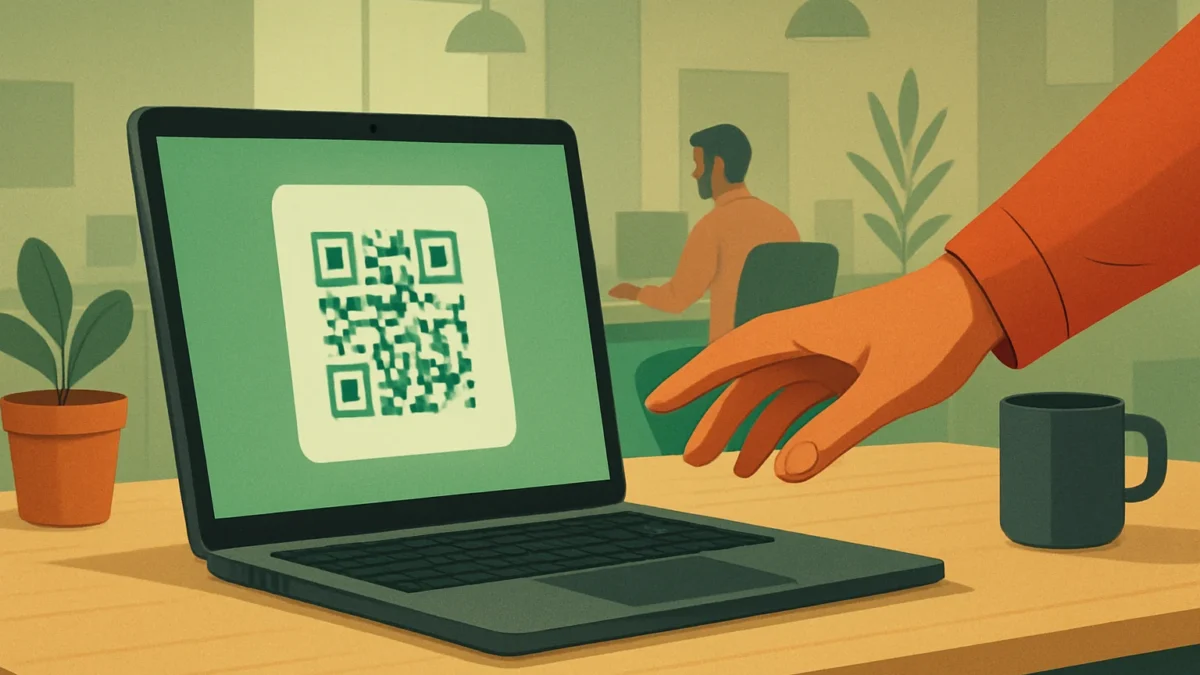
India’s I4C (NCTAU) warns that an active WhatsApp Web session on a shared or office computer can be misused. Immediately check Linked Devices in your WhatsApp mobile app, end any unknown sessions, change account PIN if needed, call 1930 and file a complaint at the national cybercrime portal if you see abuse.
Key takeaways
- I4C (NCTAU) advisory: log out of WhatsApp Web after every shared-computer session.
- Check WhatsApp mobile > Settings > Linked Devices to spot and end sessions.
- If abused, call 1930, file at cybercrime.gov.in and inform your bank immediately.
- Avoid sensitive work on public/office machines and enable two-step verification.
In this article
How the scam works (step by step, as the victim experiences it)
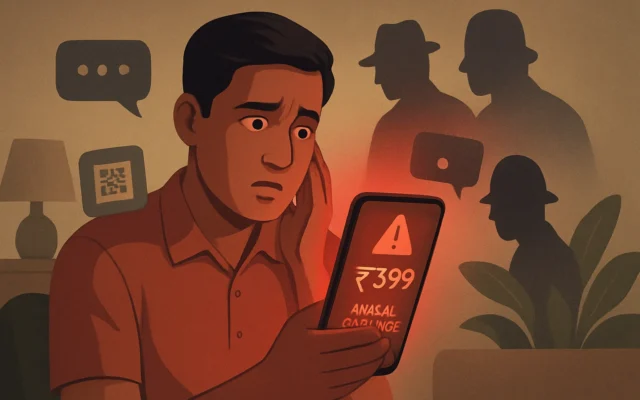
1) You open WhatsApp Web on a public or office computer and scan the QR code from your phone to link the session. You may forget to log out before leaving the machine.
2) A colleague, malicious insider or attacker with access to that machine uses the already-authenticated browser session to read messages, copy contacts, or send messages impersonating you.
3) The attacker may instruct contacts to transfer money, click phishing links or reveal OTPs and other sensitive data while pretending to be you. Because the session looks like it came from your account, recipients are more likely to trust it.
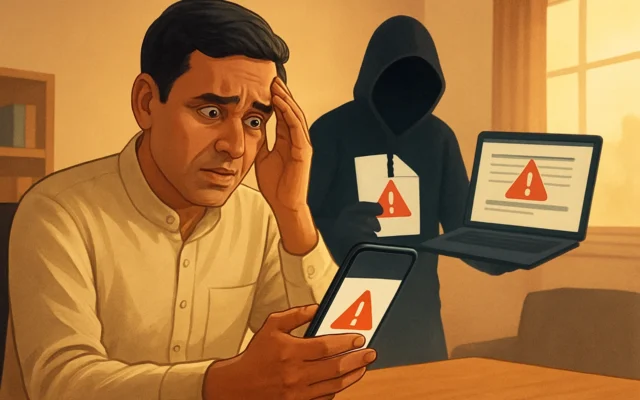
4) You discover unauthorised activity later — unusual messages sent from your account, complaints from contacts, or alerts from banks or services about transactions.
Red flags to spot
- Unfamiliar device listed under Linked Devices on your WhatsApp mobile app.
- Messages in your chat marked as “Seen” or “Delivered” that you did not open or send.
- Contacts telling you they received requests for money, OTPs, or suspicious links from your number.
- Sudden requests for business approvals or financial transfers that match your contacts or groups.
- Alerts from your bank about unusual activity linked to messages or approvals you did not give.
Also read: Fact-check: Income tax notice WhatsApp forwards are usually fake · Digital arrest scam: Spot fake ED / cyber-official calls fast
What to do if you have been targeted
Immediate actions (quick, do these now)
| Action | Where to tap / what to type |
|---|---|
| End all active WhatsApp Web sessions | WhatsApp > Settings > Linked Devices > Log out from all devices |
| Change WhatsApp two-step verification PIN | Settings > Account > Two-step verification > Enable / Change PIN |
| Inform your bank if money requests were involved | Call your bank’s fraud helpline immediately and freeze accounts if advised |
| Report to Indian cyber authorities | Call 1930 (National Cyber Crime Helpline) and file complaint on cybercrime.gov.in |
Step-by-step check with screenshots (what to look for)
- Open WhatsApp on your phone. On Android tap the three dots, then Linked devices. On iPhone go to Settings > Linked Devices. You will see a list of signed-in browsers and computers.
- Look for unknown entries. Each entry shows the device type (e.g. Chrome, Firefox) and last active time. If you see a device you don’t recognise or a location that’s wrong, that session may be unauthorised.
- Log out suspicious sessions. Tap the device entry and choose Log out. To be safe, choose Log out from all devices to remove any lingering sessions.
- Change two-step verification PIN. Go to Settings > Account > Two-step verification and set or change a PIN and recovery email. This prevents re-linking without your PIN.
- Check message history. Look for messages sent that you didn’t write and inform contacts not to act on any money or OTP requests sent during the suspicious timeframe.
Note: screenshots are useful when reporting. Capture the Linked Devices screen (showing unknown device) and any fraudulent messages — these help investigators. Do not share screenshots publicly or with unknown persons.
How to report abuse in India (exact steps)
- Call the National Cyber Crime Helpline: dial 1930. Explain that your WhatsApp account was misused via WhatsApp Web and follow their instructions.
- File a complaint on the national cybercrime portal: go to the portal and use the cybercrime complaint form (choose the WhatsApp/IM abuse category). Provide your phone number, screenshots, times and any transaction details.
- Inform your bank immediately if any fraud or money transfer was attempted or completed. Ask the bank to flag or block transactions and accounts if necessary.
- Keep evidence: take screenshots of Linked Devices, conversation messages, and any transaction messages or UPI/payment references. Record the 1930 complaint number if provided.
How to stay safe
- Avoid using WhatsApp Web on shared, office or public computers whenever possible. Use your own trusted devices.
- Always log out after a session. If you forget, end sessions remotely from your phone’s Linked Devices screen.
- Enable two-step verification on WhatsApp and set a recovery email. This prevents easy relinking of your account.
- Do not scan QR codes from unknown sites, offers or messages claiming to “activate features” — these can be scams to link your account.
- For sensitive official work, use approved, enterprise communication tools rather than personal WhatsApp Web.
Official advisory summary: The Indian Cyber Crime Coordination Centre (I4C), via its National Cybercrime Threat Analytics Unit (NCTAU), has advised users to manually log out of WhatsApp Web after every session and avoid sensitive communications on shared devices. Check Linked Devices regularly.
If you see unauthorised activity, act quickly: end sessions, enable two-step verification, inform your bank and report to 1930 and the national cybercrime portal. Fast steps reduce harm and help investigators act.
Follow the I4C advisory: avoid WhatsApp Web on shared machines, check Linked Devices on your phone and log out unknown sessions. If you spot misuse, call 1930 and file at the national cybercrime portal immediately; inform your bank if money is involved.
Frequently asked questions
Can someone read my WhatsApp messages if I used WhatsApp Web on a public computer?
Yes. If a WhatsApp Web session remains active on a public or office computer, anyone with access to that machine can read and send messages from your account. Always log out after using shared devices and check Linked Devices on your phone.
How do I sign out of WhatsApp Web remotely?
Open WhatsApp on your phone, go to Settings (or Linked Devices), view the list of signed-in devices and tap each unknown device or choose Log out from all devices. This ends browser sessions immediately.
Should I change my SIM or phone number after a WhatsApp Web hijack?
Changing SIM or number is not usually required if you end sessions, enable two-step verification and report the incident. If attackers also obtained SIM control or money was stolen, contact your mobile operator and bank for next steps.
What exactly should I tell the 1930 helpline and cybercrime portal?
Give your phone number, date/time of suspicious activity, screenshots of Linked Devices and offending messages, any transaction references, and the device/browser name shown in Linked Devices. Ask for a complaint/incident number.
Does WhatsApp itself log me out automatically on public computers?
WhatsApp does not reliably log you out automatically from every browser after a short time on shared computers. The government advisory recommends manually logging out after each session and using two-step verification.