7-step guide: WhatsApp audio stickers — make & send on Android, iPhone
Step-by-step guide to create, send and troubleshoot WhatsApp audio stickers on Android, iPhone and Web. File limits, voice tips and quick fixes for India users.

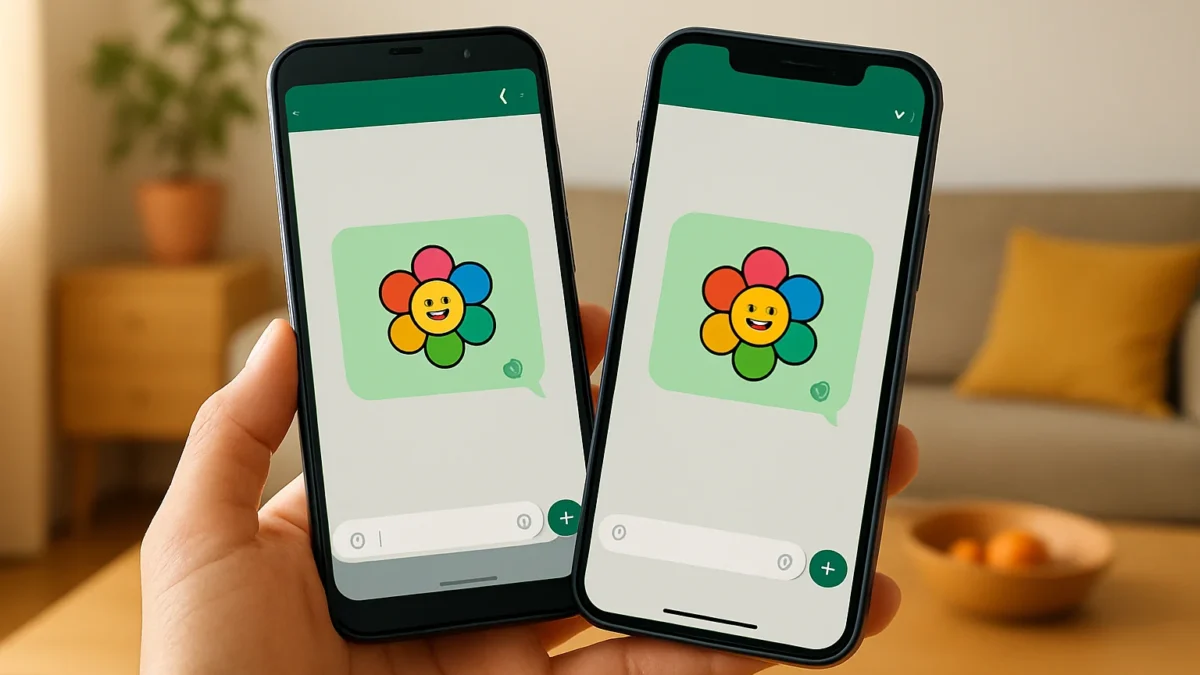
WhatsApp now supports sound (audio) stickers you can make from short videos or by adding a custom audio clip. On Android and iPhone the Create Sticker editor includes an Add Sound option; Web can receive but usually cannot create them yet. Audio tracks are short (5–10s depending on method) and the feature is rolling out via beta first.
Key takeaways
- Create audio stickers inside WhatsApp’s Create Sticker editor on Android or iPhone (beta rollout).
- Audio on stickers is short — expect roughly 5–10 seconds; check app version if you can’t add sound.
- Use MP3/M4A/OGG or record directly in the editor; keep voices clear and background noise low.
- You can send audio stickers to one-to-one chats and groups; Web/desktop currently mostly receive only.
- If you don’t see the option, update to the latest app or join WhatsApp beta/TestFlight and restart the app.
In this article
- 1. What is a WhatsApp audio sticker?
- 2. File and length limits (what to expect)
- 3. Step-by-step: Make audio stickers on Android
- 4. Step-by-step: Make audio stickers on iPhone
- 5. How to add audio stickers to chats and groups
- 6. Troubleshooting & tips (Android, iPhone, Web)
- 7. Voice quality best practices for clear audio stickers
- How we picked
- Frequently asked questions
- Sources
1. What is a WhatsApp audio sticker?
What it is: A sticker image (usually 512×512) that includes a short attached audio track you can play by tapping the sticker. It’s not a voice note or a full video — it’s a sticker with sound layered in.
Best for: Quick reactions with tone — e.g., a short laugh, a two-second jingle, or a spoken one-liner.
- Pros: Expressive, small file, plays inline without opening a player.
- Cons: Very short audio length, feature first appears in beta and may look different across platforms.
How to start: Open any chat, tap the sticker icon, then choose Create sticker (you’ll see an Add sound or audio icon when the feature is available in your app). ([wabetainfo.com](https://wabetainfo.com/whatsapp-is-rolling-out-new-sound-sticker-messages-on-android/?utm_source=openai))
2. File and length limits (what to expect)
What it is: WhatsApp currently limits how much audio can be embedded in a sticker. Reports from the rollout show audio tracks are short — typically 5 to 10 seconds depending on how the sticker is made and app version.
Best for: Short voice reactions, sound effects, or music snippets under 10 seconds.
- Pros: Small, quick to send and receive; preserves chat flow.
- Cons: Not for long messages — you’ll still need voice notes for longer speech.
How to start: Use a short video (WhatsApp often copies a short section of the video audio — some reports say 5s when auto-extracted) or import a custom audio clip up to about 10s. If exact limits matter, check your app’s Create Sticker editor — it shows the usable length. ([stickersconaudio.com](https://stickersconaudio.com/en/how-to-make-audio-stickers?utm_source=openai))
Also read: How to schedule WhatsApp messages on Android, iPhone & Web · Transfer WhatsApp chats between Android and iPhone without losing media
3. Step-by-step: Make audio stickers on Android
What it is: Android (beta first) gets a new Audio button inside Create sticker to keep video sound, pick an effect, import a file, or record voice.
Best for: Android users who want on-device editing without extra apps.
- Pros: All-in-app creation, import files from Files, simple record option.
- Cons: Feature is rolling out — may require joining WhatsApp Beta and updating Play Store app.
How to start (short steps):
- Update WhatsApp to the latest stable or beta version (join beta if needed). ([wabetainfo.com](https://wabetainfo.com/whatsapp-is-rolling-out-new-sound-sticker-messages-on-android/?utm_source=openai))
- Open a chat → sticker icon → Create sticker.
- Choose a short video or image and tap the new Audio icon in the editor.
- Pick Original sound, choose a preset sound, import an MP3/M4A/OGG from Files, or record a voice clip.
- Trim audio to the allowed length, save as a sticker and share to chat or add to a pack.
4. Step-by-step: Make audio stickers on iPhone
What it is: iPhone builds have a similar Create sticker flow; new audio controls appear in TestFlight builds for early testers and are rolling out to iOS users.
Best for: iPhone users who prefer Apple’s media picker and TestFlight preview access.
- Pros: Familiar editor, direct recording, uses iOS files for imports.
- Cons: May reach stable iOS later than Android; TestFlight invite sometimes needed. ([egymonitor.com](https://egymonitor.com/en/posts/how-to-make-whatsapp-sound-stickers-android-and-iphone-2026?utm_source=openai))
How to start (short steps):
- Update WhatsApp from the App Store or join TestFlight if the editor isn’t visible. ([egymonitor.com](https://egymonitor.com/en/posts/how-to-make-whatsapp-sound-stickers-android-and-iphone-2026?utm_source=openai))
- Open a chat → sticker icon → Create sticker → pick a short video or image.
- Tap the Audio icon → choose keep video audio, import from Files, or record directly.
- Trim and save; add to a sticker pack and send.
5. How to add audio stickers to chats and groups
What it is: Once saved, audio stickers appear in your sticker keyboard and can be sent like any sticker to single chats or groups.
Best for: Quick reactions for groups where tone matters (e.g., celebratory sounds in family groups).
- Pros: Plays inline; recipients tap to hear sound.
- Cons: Some recipients on older app versions or Web may only see the image without audio or cannot create their own yet. ([engadget.com](https://www.engadget.com/2327763/whatsapp-is-testing-stickers-with-sound/?utm_source=openai))
How to start: Send the sticker from the sticker keyboard. If you want everyone in a group to use it, save it into a named pack and share the pack (some platforms allow sharing sticker packs).
6. Troubleshooting & tips (Android, iPhone, Web)
What it is: Common problems and quick fixes for when Add sound or playback doesn’t work.
Best for: Users who don’t yet see the feature or have playback issues.
- Check app version: Update WhatsApp (Play Store/App Store) or join the beta/TestFlight if the audio option is missing. Many rollouts start in beta. ([wabetainfo.com](https://wabetainfo.com/whatsapp-is-rolling-out-new-sound-sticker-messages-on-android/?utm_source=openai))
- No sound after sending: Recipient may be on an older version or on Web/desktop that only receives the image; ask them to update WhatsApp. ([engadget.com](https://www.engadget.com/2327763/whatsapp-is-testing-stickers-with-sound/?utm_source=openai))
- Audio too quiet or noisy: Re-record with less background noise, speak close to the mic, use a short filter app to normalise volume before importing.
- Formats: Use common audio files (MP3, M4A, OGG) or record inside the editor to avoid conversion issues. ([stickersaudio.net](https://stickersaudio.net/?utm_source=openai))
- Web/Desktop: Most reports show Web can receive and play sound stickers but cannot yet create them — use mobile WhatsApp to make stickers and send them. ([engadget.com](https://www.engadget.com/2327763/whatsapp-is-testing-stickers-with-sound/?utm_source=openai))
7. Voice quality best practices for clear audio stickers
What it is: Simple recording tips so your sticker sounds good on low-bandwidth mobile networks in India.
Best for: Anyone who wants crisp, loud, and short audio that reads well on small phone speakers.
- Record in a quiet room and hold the mic 5–10 cm from your mouth.
- Speak clearly and keep the message to one short sentence or sound effect (5–10s max).
- Use the editor’s trim tool to cut silence at the start and end; normalize volume in a lightweight audio app if available.
- Prefer mono audio for smaller size and better phone speaker playback.
How we picked
We checked official WhatsApp support notes and recent rollout reports from WhatsApp’s blog, WABetaInfo and multiple tech outlets to confirm how Create sticker with audio works, plus coverage showing the feature reaching Android and iPhone betas. Practical steps follow the editor flows shown in those sources; troubleshooting is based on common cross-platform rollout issues reported during recent beta launches. ([faq.whatsapp.com](https://faq.whatsapp.com/1056840314992666/?cms_platform=android&utm_source=openai))
| Item | Can create? | Typical audio length | Notes |
|---|---|---|---|
| Android (stable/beta) | Yes (beta first) | ~5–10s | Beta has full editor: import/record/keep video audio. Update or join beta. |
| iPhone (App Store/TestFlight) | Yes (TestFlight then rollout) | ~5–10s | Similar flow; may reach stable later. Use TestFlight for early access. |
| WhatsApp Web/Desktop | Mostly no (receive/play only) | Plays short clips | Create on mobile and send; Web can usually play but not create yet. |
If you want fun, compact voice reactions, try audio stickers on mobile — Android beta users get earliest access. If you rely on Web/desktop for creation, wait until the feature rolls out there; until then create on mobile and share to groups. Keep audio under 10 seconds for best results.
Frequently asked questions
How long can the audio on a WhatsApp sticker be?
Current reports from the rollout show audio tracks are short — typically between about 5 and 10 seconds depending on whether the audio is auto-extracted from a video or imported, and on your app version. Check your Create Sticker editor to see the exact limit on your device. ([stickersconaudio.com](https://stickersconaudio.com/en/how-to-make-audio-stickers?utm_source=openai))
Can I create audio stickers on WhatsApp Web?
Mostly no — at the moment Web and Desktop can usually receive and play sound stickers, but creation tools are available only in mobile apps (Android/iPhone) as the feature rolls out. Create on your phone and send to groups if you need them on Web. ([engadget.com](https://www.engadget.com/2327763/whatsapp-is-testing-stickers-with-sound/?utm_source=openai))
Which audio formats work for imported clips?
Common formats reported to work are MP3, M4A and OGG. If in doubt, record directly in the WhatsApp editor to avoid conversion problems. ([stickersaudio.net](https://stickersaudio.net/?utm_source=openai))
Why can’t I see the Add sound option in Create sticker?
The feature is rolling out slowly. First check for app updates (Play Store/App Store) and restart WhatsApp. If still missing, join the official beta/TestFlight where available — many users first see audio stickers in beta releases. ([wabetainfo.com](https://wabetainfo.com/whatsapp-is-rolling-out-new-sound-sticker-messages-on-android/?utm_source=openai))
Sources
- WhatsApp is rolling out new sound sticker messages on Android | WABetaInfo
- How to make audio stickers on WhatsApp (2026 guide)
- How to Make WhatsApp Sound Stickers on Android iPhone
- WhatsApp Is Testing Stickers With Sound
- WhatsApp Audio Stickers: Make & Share | Stickers Audio
- How to create and share custom stickers and sticker packs | WhatsApp Help Center
- WhatsApp's sound stickers coverage — Engadget report